
Decisions offers multiple ways to assign standard licenses to individual users. This guide will illustrate direct license assignment at the individual level and bulk assignment at the Team level for Organizations with more than 250 M365 licenses.
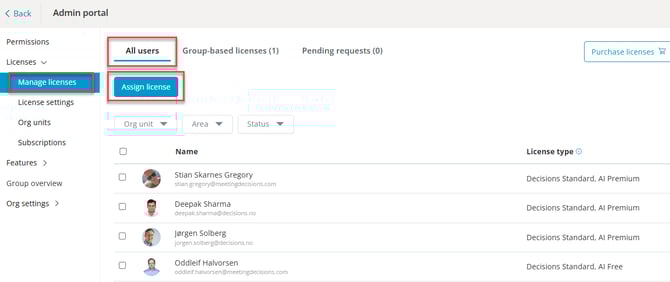
To assign license(s) go to the Decisions Admin Portal and click on the 'Manage licenses' tab that resides under the Licenses dropdown.
Direct assignment
The Manage licenses tab allows you to add or remove users by clicking the blue "Assign license" button
Search for an individual teammate, then select 'Decisions Standard'.
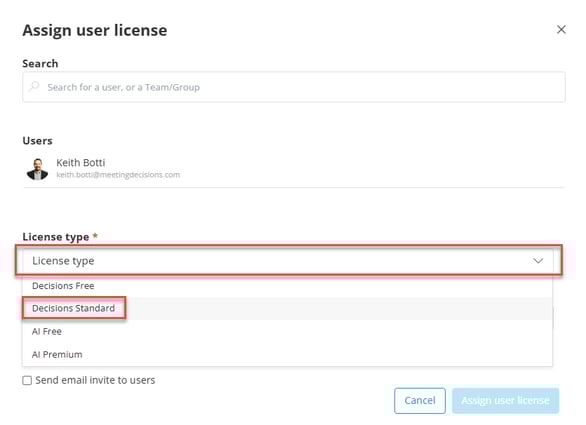
In order to automatically notify a teammate that you have assigned him or her a license, click on the checkbox to "Send email invite to users"
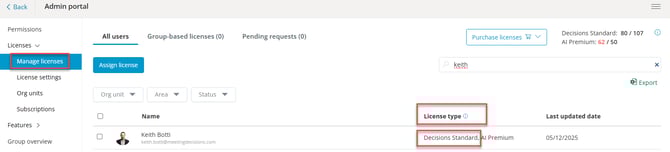
The newly assigned user will be denoted as a Decisions Standard license holder under the 'License Type' column
Team Assignment (For organizations with more than 250 M365 Licenses)
For bulk license assignment where every member of a team in your Teams environment should be assigned a license, click into the "Group-based licenses" tab next to the 'All users' tab.
From there, click 'Assign license'
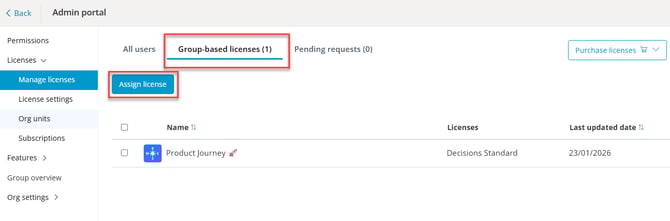
Rather than searching for specific teammates, search for a specific Team, then select 'Decisions Standard'.
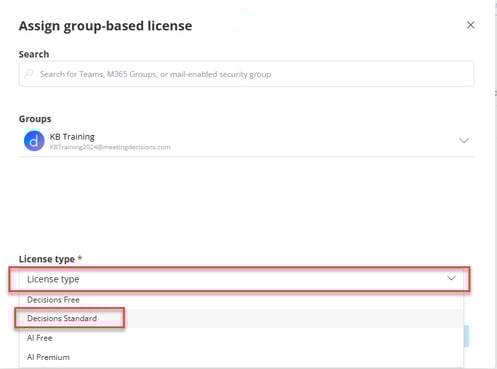
All members of the particular Team will now be assigned a user license and the Team itself will be listed under the 'Group-based licenses' tab
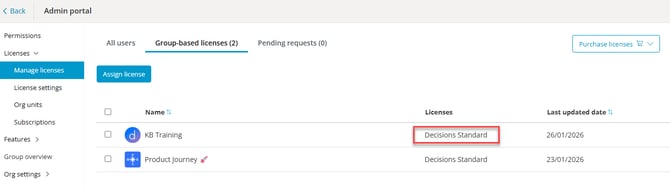
Individuals who have been assigned a user license who are also members of a Team that are assigned a Group-based license will not be counted twice
To buy a Standard license, either contact us or purchase through the Subscriptions page of our Admin Portal.
For more information on assigning Premium AI Licenses see our guide: Assigning Premium AI license