
A channel meeting belongs to the team, not to you. If you decline or delete it in your own calendar, it stays in the channel calendar and keeps showing in Decisions. Only the person who scheduled it can cancel it in Teams. Once they cancel it, it disappears from the channel calendar and from Decisions.
How to spot a channel meeting
A channel meeting is scheduled in a Teams channel, so the team is its organizer. Open the meeting in your Teams calendar. The organizer shows as the team, as in "Team name in the channel Channel name".

Why it still shows in Decisions after you decline it
Declining or deleting a channel meeting only changes your own calendar. The meeting stays in the channel calendar, so Decisions keeps showing it, marked as Declined.

Who can cancel a channel meeting
Only the person who scheduled the meeting can cancel it in Teams.
- Any team member who scheduled it can cancel it.
- Team owners can't cancel it, unless they scheduled it themselves.
- Everyone else only sees Join, Add to calendar, Copy link and Forward.

To see who scheduled it, open the meeting in Teams. The Tracking panel lists that person as Organizer. Ask them to cancel the occurrence for you.
Cancel one occurrence of a channel meeting
If you scheduled the meeting, you can cancel a single occurrence in Teams.
- In Teams, open Calendar, or go to the channel and select the Channel Calendar tab.
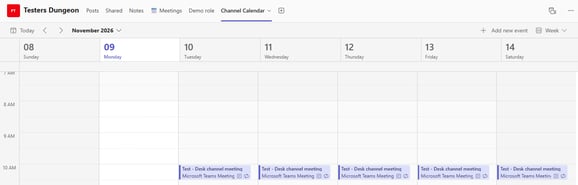
- Open the occurrence you want to cancel. If a preview card opens, select the expand icon in its top-right corner to see the full meeting.
- Select Cancel meeting, then Cancel occurrence.
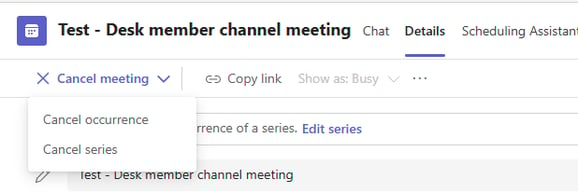
Important: Don't select Cancel series. It cancels the whole series, not just this meeting. - Add a cancellation note if you like, then select Cancel occurrence to confirm.
The occurrence disappears from the channel calendar and from Decisions.

This works the same for everyone, whether Decisions AI is on or off.