
Target audience:
-
Team owners
-
Meeting organizers
-
Decisions administrators
Core Concepts
Main Team vs Case Submitters
-
Main Team: The Team where the meeting takes place (e.g. Board or Executive Team)
-
Case submitters: Users or groups allowed to nominate cases
-
Case submitters do not need to be members of the Main Team
Supported submitter types:
-
Microsoft 365 Groups
-
Microsoft Teams
-
Security groups
-
Individual users
Enabling Case Submission
Tenant Level
Case Submission must be enabled for your tenant.
Contact support@meetingdecisions.com or your Decisions representative.
Team Level
Once enabled for the tenant:
-
Go to Team Settings
-
Open Case Submission
-
Configure the available options
-
Click Save
Team Settings / Case submission – Options Explained
Team settings - Case submission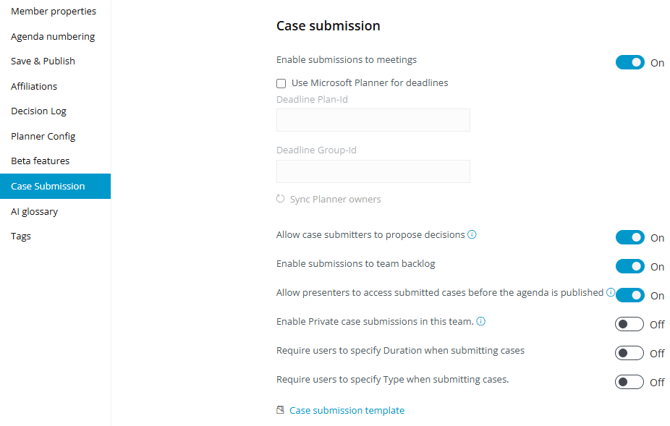
Enable submissions to meetings
Allows agendas to be opened for case submission.
Use Microsoft planner for deadlines
See the section called Deadlines
Allow case submitters to propose decisions
Submitters can attach proposed decisions when submitting cases.
Enable submissions to Team backlog
-
Allows cases to be submitted without selecting a meeting
-
Organizer decides when the case is scheduled
-
Requires a Case Submission Template
Allow presenters access before agenda is published
Presenters, readers, and contributors can work on a case before it appears on a published agenda.
Enable private case submissions
-
Submitters can submit cases privately
-
Requires Team owner approval
-
Private cases are visible only to:
-
Submitter
-
Presenters/readers
-
Team owners
-
Require Duration / Type
Makes these fields mandatory or optional
Case Submission Templates
A Case Submission Template defines:
-
Who can submit cases
-
Which deadlines apply
-
Whether agendas are automatically opened for submissions
Templates are:
-
Optional for manual meeting submissions
-
Required for backlog submissions
Automatic vs Manual
-
Automatic: All future agendas are opened for submissions when saved (Meaning; once the first agenda item is added, or an empty agenda is saved)
-
Manual: Organizers use Request Case Submissions per agenda
Templates apply only to new agendas. A change to a template will not change case submission properties on a meeting that has already been opened up for submissions.
Deadlines
Deadlines are optional and informational, meaning they are not enforced by Decisions.
Examples:
-
Submit case – 12 days before meeting
-
Upload pre-reads – 6 days before meeting
-
Upload presentation – 1 day before meeting
Deadlines are defined as N days before the meeting (including weekends and holidays).
Microsoft Planner Integration (Optional)
-
Deadlines can be created as Planner tasks
-
Deadline tasks will be assigned to individual case submitters
-
Enables reminders via Microsoft Planner
Notes:
-
Applies only to meeting submissions (not backlog)
-
Not recommended unless Planner is already part of the workflow
Request Case Submissions
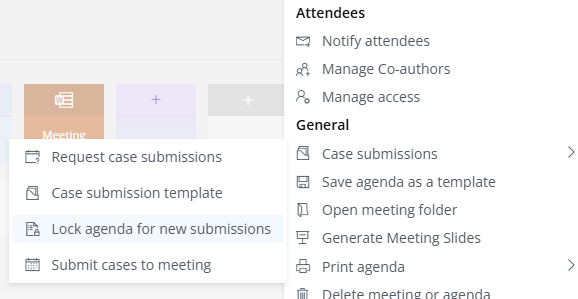
The Request Case Submissions action:
-
Opens an agenda for submissions
-
Loads submitters and deadlines from:
-
The template, or
-
The previous request for that agenda
-
Important behavior:
-
Template changes made later do not update already-open agendas
-
Agendas must be re-opened (Request case submissions) manually to apply changes
Submitting Cases (Submitter Experience)
Submitters may use the Case Submission Dashboard to:
-
See meetings open for submissions
-
Submit new cases
-
Upload documents to submitted cases
-
Track deadlines
Cases can be submitted to:
-
Draft agendas
-
Published agendas
-
Team backlogs
The Case submission dashboard is located here:
-
Open the dashboard, then select the team. The dashboard can be added as a tab in teams where the main team (destination team) is pre-selected.
Approval Models
Normal Mode
-
Organizer approves or rejects cases
-
Submitters can continue editing cases without additional approval
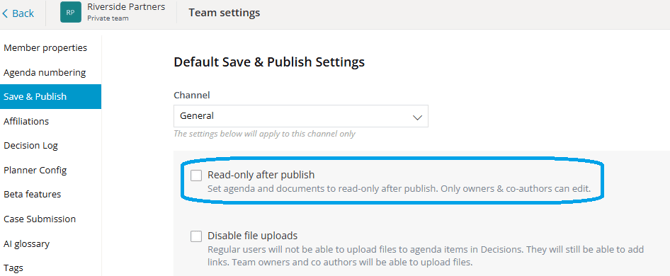
Strict Mode (Read-only After Publish)
-
Changes to a case after assignment to an agenda requires approval
-
Changes appear as change requests that the team owner/admin can approve or reject
-
Enabled via Read only after publish in Team settings - Save & Publish
Visibility and Access Control
Visibility Options
-
Submitters can see:
-
All cases from their submitter group(s), and/or
-
Their own cases
-
- Presenters and Contributors (people who have been added as presenters or contributors to cases) can see:
- Their cases in the Case overview (also see the previously mentioned team setting: Allow presenters access before agenda is published)
Case submission views
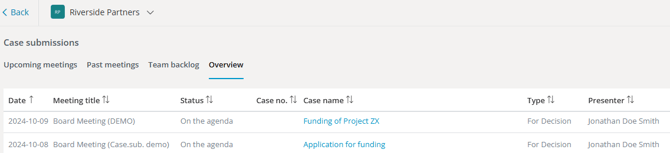
Upcoming meetings
Lists all future meetings that have been opened up for case submissions, where the current user is a case submitter, within the current team. The submitter can click on a meeting to submit a case to it.
Past meetings
Lists all past meetings that have been opened up for case submissions, where the current user is a case submitter, within the current team.
Team backlog
Lists all cases that the current user(submitter) has access to see in the Team backlog. The submitter can submit to the backlog here,
Overview
Provides an overview of all cases, in backlog and meetings, that the current user has access to see. Presenters and contributors can use this view to find cases.
Restricted Content
-
Files are stored in the receiving Team’s SharePoint site
-
File visibility can be restricted by Team owners
Storage and Security
-
All cases and attachments are stored in your Microsoft 365 tenant
-
Files are stored in SharePoint (one folder per case)
-
Access is governed by Microsoft Entra ID and existing permissions
-
Decisions does not store customer content in its own cloud
Best Practices
-
Use Case Submission instead of Suggest Case to avoid confusion
-
Keep submitter groups clearly defined
-
Avoid changing case submission templates after agendas are opened. Sometimes this is unavoidable so keep in mind that template changes will not update meetings that are already open for submission. These must be updated manually.
-
Use backlog submissions for long-term planning
-
Lock agendas when submissions should stop.
Licensing
Case Submission is a premium Decisions feature and requires a separate license.
Contact support@meetingdecisions.com to enable it.