
Note: Case submission is different from suggesting a topic because it does not require you to be invited to the meeting.
How to access case submission
You submit cases through the Case submission dashboard. Your organization will typically give you access in one of two ways:
-
A link to the case submission dashboard.
-
A tab in Microsoft Teams (in a Team or channel) that opens the case submission dashboard directly, often with the receiving team pre-selected.
Meeting or backlog
In the dashboard, you select where to submit your case. What you see depends on the receiving Team’s setup and what you have access to:
-
A meeting open for submissions: submit your case directly to that meeting.
-
The Team backlog: submit without choosing a meeting, and an organizer will pick the topic from the backlog when a meeting with a suitable slot is available. (If you do not see the backlog option, it is not available for this team)
Submit on behalf of
You will always see Submit on behalf of in the top right. It controls who the case is submitted on behalf of and who can see it.
-
Submitting on behalf of a group (for example, HR, Sales, Marketing) links the case to that submitter group and makes it visible to members of that group (based on the Team’s visibility settings), in addition to owners of the receiving Team.
-
This supports department-level ownership and coordination. It helps colleagues collaborate on pre-reads, maintain continuity during absence, and reduce duplicate submissions.
-
-
Submitting on behalf of yourself is available when you have either been added as an individual submitter or have been granted access to submit a private case. In both scenarios, the case is visible only to:
-
You (the submitter)
-
Owners of the receiving Team
-
TIP: If you belong to multiple submitter groups, use the chevron to select the correct group before submitting.
Deadlines and reminders
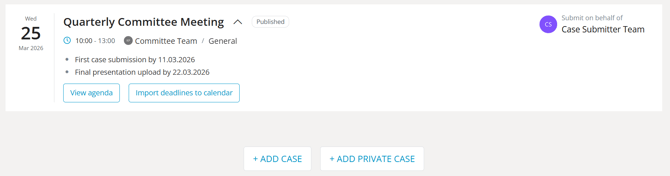
Some Teams use deadlines to guide when cases and supporting materials should be delivered.
-
Deadlines are informational and shown as dates calculated as N days before the meeting.
-
Deadline names are defined by the receiving Team.
-
Deadlines help set expectations but are not enforced by Decisions.
If Planner integration is enabled:
-
Some submitters may also receive Planner tasks and reminders.
-
This applies to meeting submissions only, not backlog submissions.
What a case submission can consist of
A case submission usually contains the same core elements as a regular agenda item. The receiving Team may require specific fields, and some options depend on configuration.
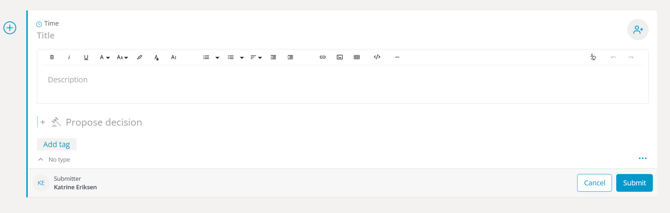
A case submission can include:
-
Title (required): The case name.
-
Description: Description and context.
-
Type: Often used to indicate information, discussion, or decision.
-
Time: Requested time for the case presentation.
-
Presenter: Who will present the case when it is approved for a meeting.
-
Files and attachments: Pre-reads, supporting documents, and presentations.
-
Proposed decision: If enabled, you can propose a decision as part of the submission.
If you cannot submit until a field is completed, that field has been made required by the receiving Team.
Submission options
When you click Submit, a confirmation pop-up appears with two options. These options affect what happens after you send the submission.
-
Review required: Flags the case as requiring review by the receiving Team’s owners. This is an informational marker to help owners identify cases that need attention.
-
Notify team owners by e-mail: Sends an e-mail notification to the responsible owners.
-
If the target meeting has meeting owners on the attendee list, the notification is sent to those owners.
-
If none of the meeting owners are on the invitee list, the notification is sent to all owners of the receiving Team.
-
No notification is sent to other submitters in your group. They will still be able to see the submitted case in the case submissions overview.
-
Select the relevant options, then click Send request to submit.
Private submissions
Use private submission when confidentiality is required.
In many cases, it is better not to submit privately:
-
Others in your submitter group can help upload pre-reads and supporting material.
-
Your department has continuity if someone is out of office.
-
It reduces duplicate submissions because people can see what has already been submitted.
After you submit
Owners review the case and decide whether to:
-
Approve it (for example, to add it to a meeting agenda or manage it through the backlog), or
-
Reject it (for example, if the case is unclear, incomplete, out of scope, or not appropriate for the receiving Team to handle).
Editing rules vary by Team. Some Teams allow ongoing edits, while others require approval for changes after a case is approved or added to an agenda.