
When to use a Circular resolution
Use a Circular resolution when a decision cannot wait for the next meeting, or when there is no meeting planned at all. Typical situations:
- An agenda item you did not get to, but that needs a decision before the next meeting
- A time-sensitive proposal that needs formal sign-off from a board or committee
- A decision that requires proper voting or approval, but does not justify calling a meeting
If your team has previously created a meeting in Decisions just to collect votes or approvals asynchronously, a Circular resolution is now the intended way to do that, with no placeholder meeting needed.
Circular resolutions supports, rather than replaces, decision-making in meetings. Meetings remain the primary arena for discussion and decisions. This feature ensures the decisions made between them are recorded with the same formality, in the same Decision log.
Who can use Circular resolutions
Circular resolutions is available in teams and channels that use Voting or Structured Approvals as their decision-making process. The Circular resolution is finalized using whichever framework your team has configured, working the same way it does inside a meeting.
Team owners can create a Circular resolution. Published Circular resolutions are visible to all team members.
How to create a Circular resolution
- Open the Decision log for your team or channel.
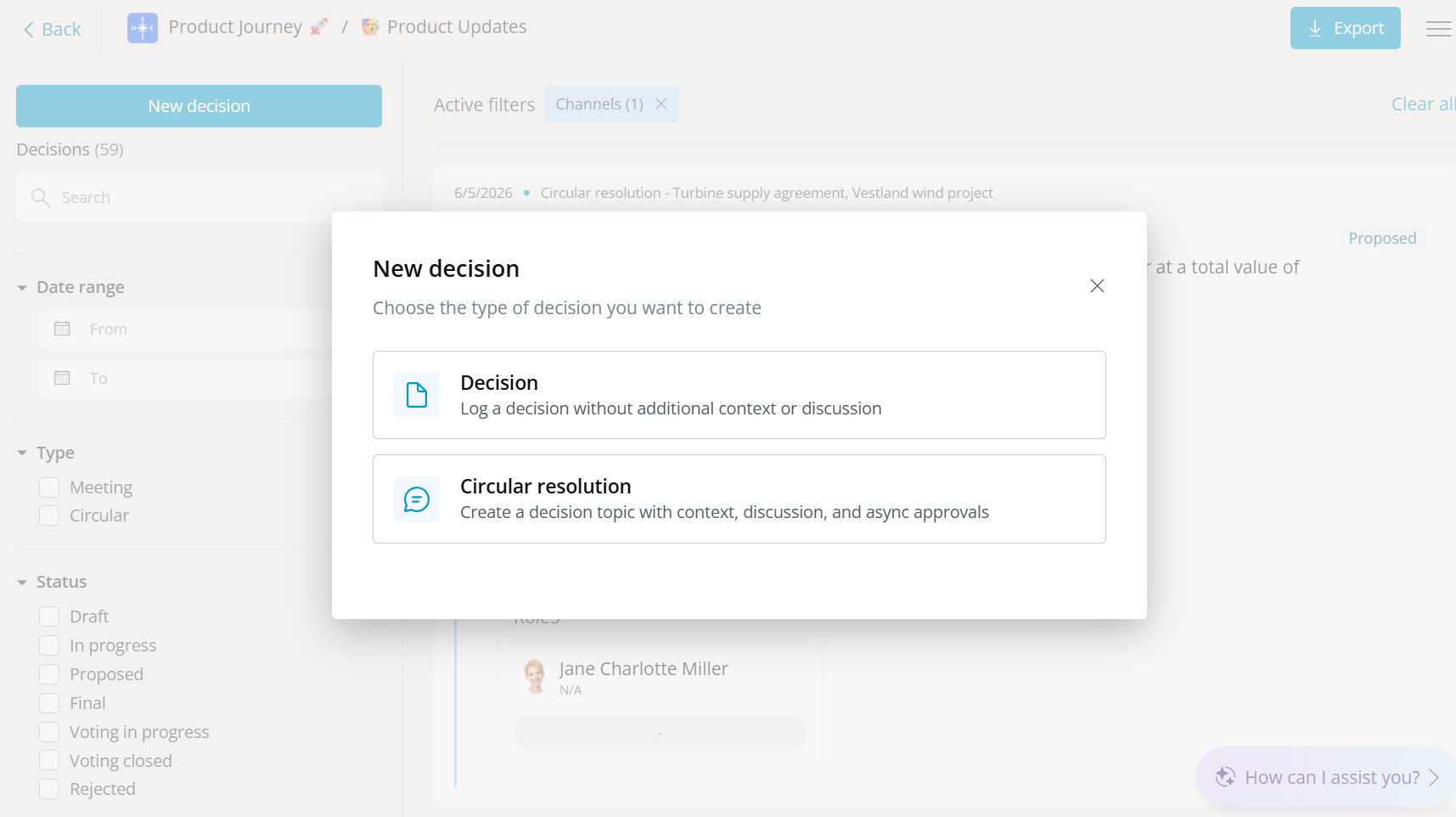
- Click New decision.
- Choose Circular resolution. (Choosing Decision instead logs a simple decision without context or discussion.)
- Select the channel the Circular resolution belongs to.
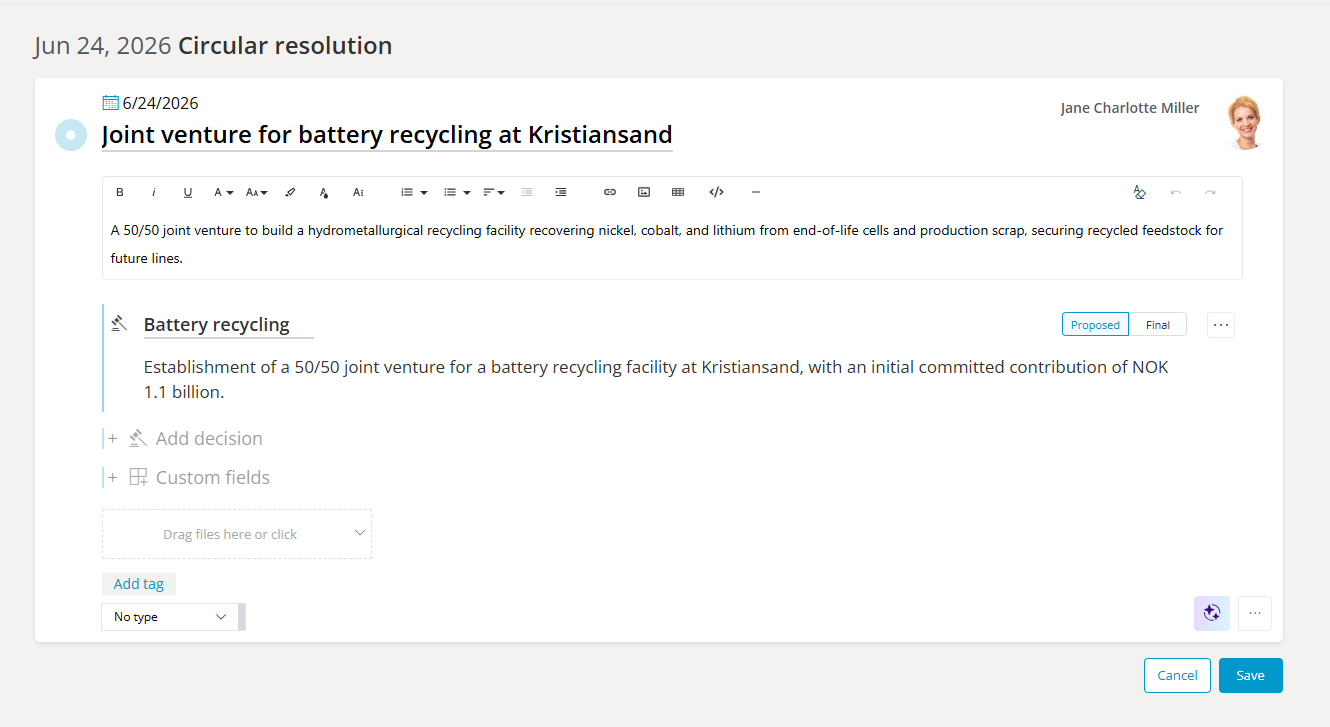
- Give the Circular resolution a title and a description with the background the decision makers need.
- Add the decision text under Add decision. This is required - a Circular resolution cannot be published without a decision to decide on.
- Add supporting content as needed: file attachments, tags, custom fields, and co-authors who can help prepare the content.
- Click Save draft.
The lifecycle: Draft, Publish, Decide, Lock
A Circular resolution moves through four stages:
- Draft - Visible only to the creator and co-authors. Collaborate on the description, files, and decision text until it is ready.
- Publish - The Circular resolution becomes visible to all team members in read-only view, and notifications can be sent to the team and/or only the decision makers.
- Vote or approve - Decision makers finalize the decision using the team's configured framework, Voting or Structured Approvals, exactly as they would in a meeting.
- Lock - An admin locks the Circular resolution and sets the outcome.
Where the Circular resolution lives afterwards
Once locked, the decision from the Circular resolution appears in the Decision log with a clear marker showing how it originated, so it is always visible how the decision was made. You can filter the Decision log to show only circular resolutions.
Each Circular resolution also has its own dedicated page with the full context: description, attachments, and outcome. Circular resolutions are included in Advanced search and Advanced Reporting, so they surface anywhere your team works with its decision data.
FAQ
What is a circular resolution?
A circular resolution is a formal decision made outside a meeting, where decision makers vote or approve in writing instead of gathering. In Decisions, it is a structured topic with a decision, finalized through Voting or Structured Approvals and recorded in the Decision log.
Why don't I see the Circular resolution option?
Your team or channel needs Voting or Structured Approvals configured as its decision-making process. Teams without one of these frameworks do not see the option.
Do I still need to create a meeting to run asynchronous voting or approvals?
No. That is exactly what Circular resolutions replaces. Create the Circular resolution directly from the Decision log, and decision makers vote or approve without any meeting involved.
Can I change a circular resolution after it is locked?
No. Locking makes the Circular resolution read-only, which is what makes it a record of the decision.