
No matter whether your agenda is in draft mode or fully published, follow the below steps in order to take an agenda and move it to a different calendar event
Tip: The below steps will only work if your Role for the original meeting is a meeting admin role (meeting organizer, Team owner, or co-author)
- Access the agenda view for the meeting whose agenda must be moved.
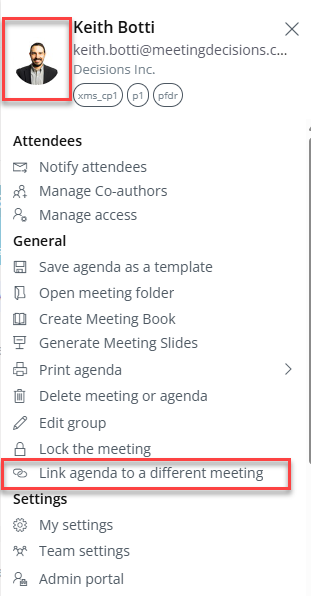
- Open the main menu in the upper right corner and click on your avatar 10 consecutive times. That action will populate an otherwise hidden menu option called "Link agenda to a different meeting". Click that menu option.
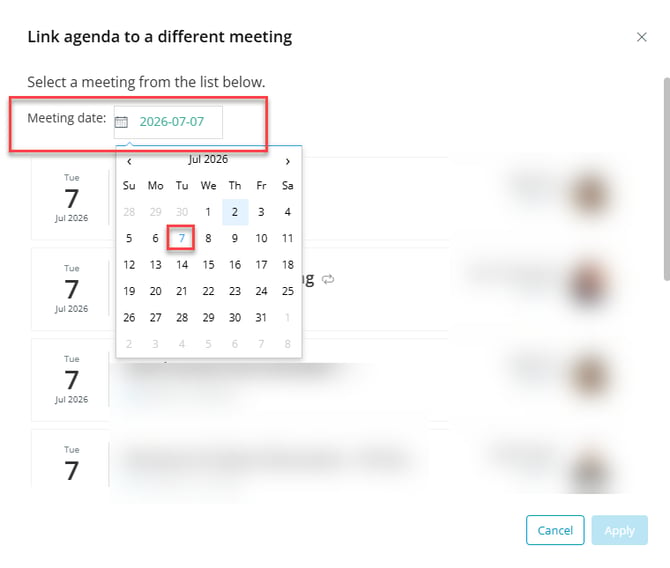
- A modal will populate listing your meetings. Use the meeting date selector to choose the date of the meeting to which the agenda must be moved.
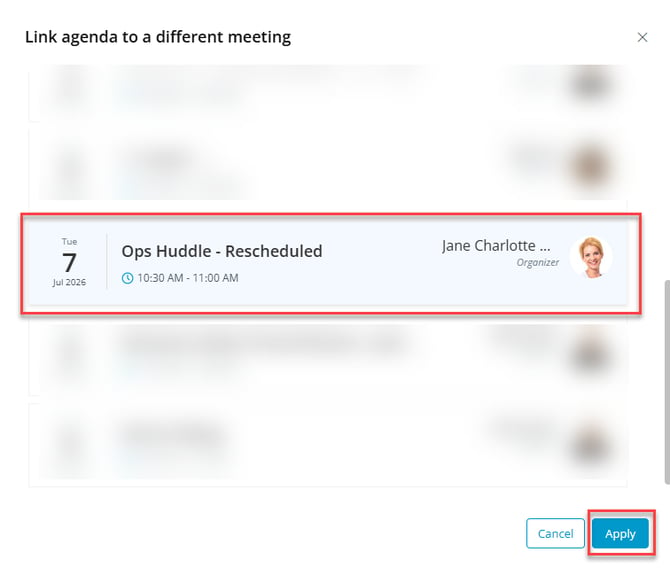
- Select the meeting to which the agenda must be moved and click "Apply".
Tips: You must be included (either as the organizer or an invitee) on the calendar event of the meeting to which the agenda must be moved or it will not populate within the date selector
There must not be an agenda (draft or published) associated with the meeting to which the agenda must be moved or it will not populate within the date selector
Your agenda will be successfully moved to the new meeting event. All attachments to the original agenda will move to the new meeting and the original meeting will revert to its original state before any agenda items were created.
Your agenda will be moved into the new meeting as a published agenda if it was in a published state when moved or in draft mode if it was in a draft state when moved.