
Decisions can add and update tasks in Planner Premium plans straight from your meetings, in Microsoft Teams, Outlook, Word and the web app. An admin turns it on once, on the Permissions page of the Decisions admin portal, and it then works for everyone with a Planner Premium license. This guide shows who can turn it on, what it sets up in your organization, and what your users see.
What Planner Premium support does in Decisions
With Planner Premium turned on, action items from your meetings land directly in your premium plans. People with a Planner Premium license can create tasks and buckets, and change titles, dates, progress, assignees, buckets and descriptions, without leaving the meeting.
It works wherever Decisions runs: the web app, Microsoft Teams, Outlook and Word. Basic Planner plans keep working exactly as before.
Requirements
Before you start, check that you have:
- A Decisions plan that includes Planner Premium: Business+ or Executive. Customers on an earlier Decisions license have it too.
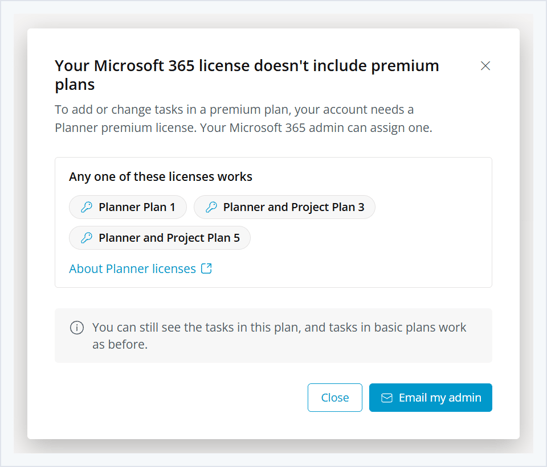
- A Planner Premium license for each user who edits tasks: Planner Plan 1, Planner and Project Plan 3, or Planner and Project Plan 5. Users without one can still see premium tasks.
- The right admin role. You need the System Administrator role in each Power Platform environment that holds premium plans. Global Administrators, Power Platform Administrators and Dynamics 365 Administrators have it. Approving the Microsoft consent needs an admin who can grant tenant-wide consent in Microsoft Entra ID, such as a Global Administrator.
How to turn on Planner Premium
You turn it on in one dialog, which takes care of both the Microsoft approval and the setup.
- Open Permissions in the Decisions admin portal (Company > Permissions).
- Find Planner Premium in the list of optional permissions and turn the toggle on.
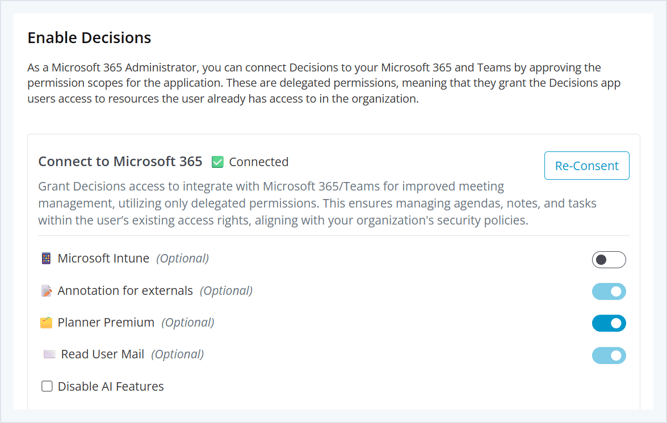
- In the Configure Planner premium dialog, click Configure.
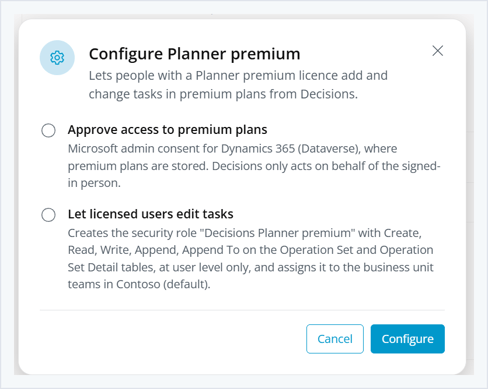
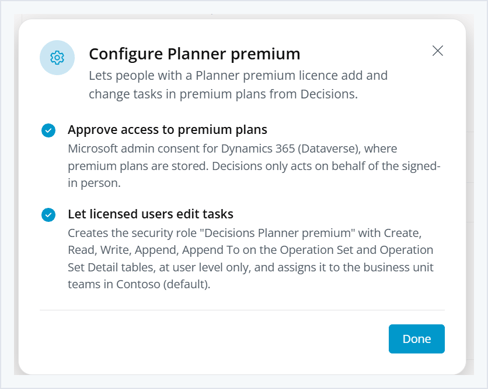
- Approve the Microsoft permission if asked, then click Done.
What Decisions sets up in your Power Platform environment
Turning on Planner Premium does two things:
- Approves access to premium plans. Premium plans are stored in Dynamics 365 (Dataverse), so Decisions needs your admin consent to reach them. Decisions uses delegated permissions only: it acts on behalf of the signed-in person, within the access that person already has.
- Creates one security role. Decisions creates the role Decisions Planner premium and assigns it to the default team of each business unit, so it applies to all users in the environment. The role grants:
| Table | Privileges | Access level |
|---|---|---|
| Operation Set | Create, Read, Write, Append, Append To | User |
| Operation Set Detail | Create, Read, Write, Append, Append To | User |
Why the role is needed
Every change to a premium plan goes through Microsoft's Project scheduling service, which records the change in an operation set owned by the user. Microsoft's standard Planner and Project roles do not let users create operation sets, because Planner itself saves changes through Microsoft's own service. The Decisions Planner premium role adds exactly that privilege, at user level only.
The role does not give access to any project or task. Users can still change only the premium plans they are members of, with their own Planner license.
What your users see until it's set up
Until an admin turns on Planner Premium, Decisions cannot read premium plans, so the plan picker lists only basic Planner plans. When users look for a premium plan, or try to change a premium task, Decisions explains what is missing instead of showing an error.
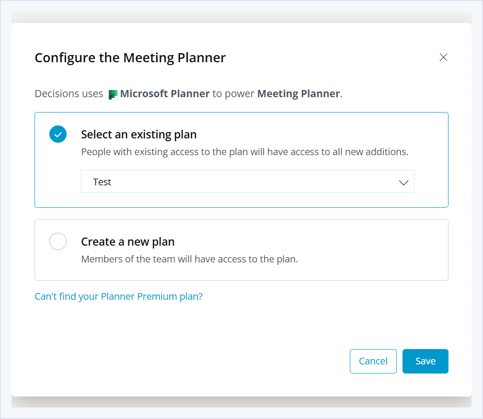
- Premium plans are not in the plan picker yet. Under the plan options, users see the link Can't find your Planner Premium plan?, which opens the request described next. Once an admin turns on Planner Premium, the link goes away and premium plans appear in the list.
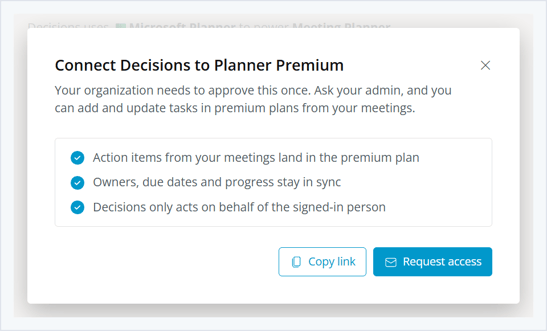
- No approval yet. The user can click Request access, which emails your Decisions admins with a link to the Permissions page, or Copy link to share it. Once the email is sent, the dialog confirms it.
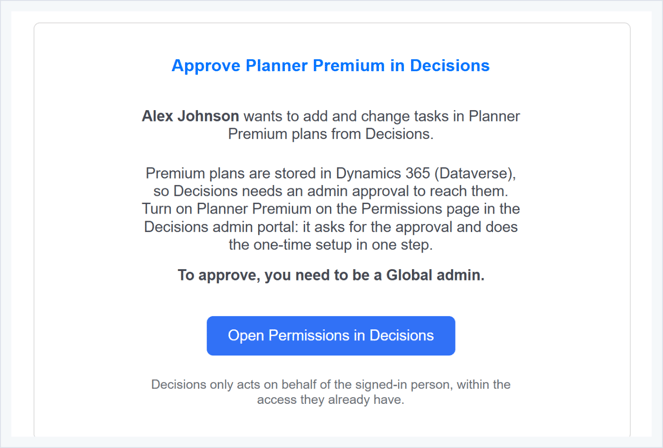
 Your admins receive an email like this one:
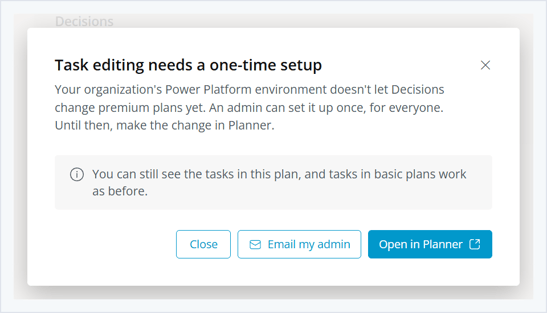
- Approved, but not set up. The user can open the plan in Planner to make the change there, or click Email my admin.
- No Planner Premium license. The user sees which licenses work and can email the admin.
The emails go to the addresses set under License request emails on the Admins page of the Decisions admin portal. When none are set, they go to all your Decisions admins.
How to turn off Planner Premium
- Open Permissions in the Decisions admin portal (Company > Permissions).
- Turn off the Planner Premium toggle and confirm with Turn off.
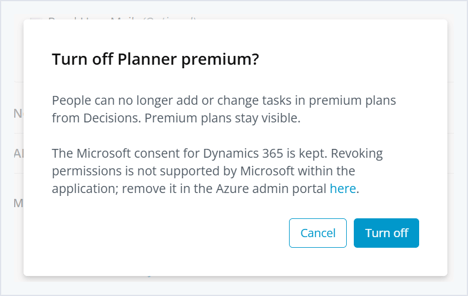
Decisions removes the Decisions Planner premium role from your environments. Users can still see premium plans and their tasks, but they can no longer change them from Decisions.
The Microsoft consent stays in place. To revoke it, go to the Azure portal, open Enterprise applications > Decisions > Permissions, and remove the Dynamics 365 permission.
Current limitations
- Labels, priority and clearing a date are not saved to premium plans yet. Decisions tells the user when a change was not saved.
- Private and shared channels do not list premium plans yet.
- The plan picker lists premium plans only after an admin turns on Planner Premium, and only plans owned by the team's Microsoft 365 group.
FAQ
Who can turn on Planner Premium in Decisions? An admin with the System Administrator role in each Power Platform environment that holds premium plans, such as a Global Administrator, Power Platform Administrator or Dynamics 365 Administrator. The Microsoft consent step needs an admin who can grant tenant-wide consent.
Do I need to set it up for every team? No. You turn it on once for your organization. Decisions sets up every Power Platform environment with Planner Premium in the same step, and the role applies to all users in each environment.
Does the Decisions Planner premium role give users access to more plans? No. It only lets users record their changes through Microsoft's scheduling service. Users can still change only the premium plans they are members of, and they need a Planner Premium license.
Which license do users need to edit Planner Premium tasks from Decisions? Planner Plan 1, Planner and Project Plan 3, or Planner and Project Plan 5. Users without a Planner Premium license can still see premium tasks. See Microsoft's Planner licensing for details.
Why do users see "Task editing needs a one-time setup"? Decisions has the approval to reach premium plans, but the security role is missing in that environment. Turn the Planner Premium toggle off and on again, or click Configure, to finish the setup.