
Generate your AI Minutes
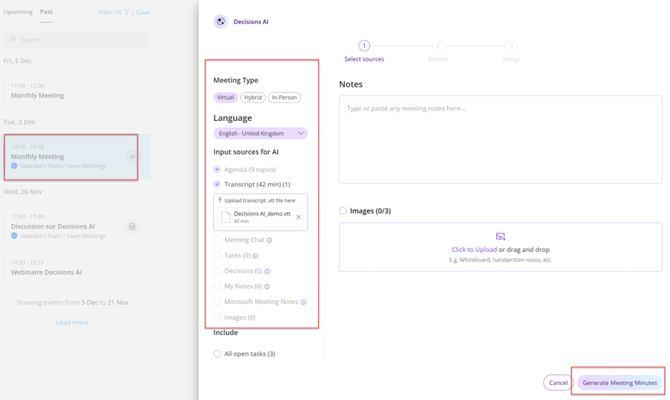
- Click on Minutes button from the Meeting summary page or Agenda view page
- Select which sources to use as input for the AI
- Change Meeting Type or Language output if the automatic option is incorrect
- Meeting type: If the meeting was in-person or hybrid (some people online and some in-person) the correct classification helps the AI improve the quality
- Optionally add additional notes or upload images
- Click Generate Meeting Minutes draft.
Review and Export the AI Meeting Minutes
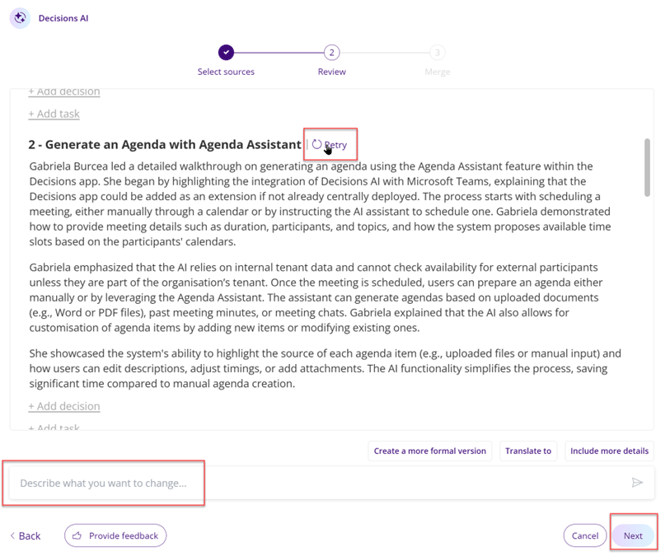
- Edit the text, decisions, and action items directly in the prompt window, or use Describe changes to request AI edits (e.g., replace X with Y).
- Use Retry to regenerate text for specific agenda items only when the first result is not correctly reflecting the meeting
- Click Next to export the draft Meeting Minutes to Word or OneNote. Continue editing there if needed.
Share the Meeting Minutes
Once review is complete, open the agenda again and click Share.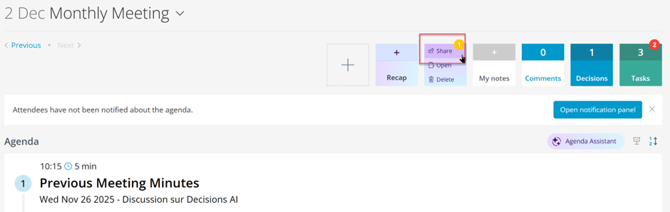
You can choose to:
- Post to a Teams channel so a wider audience can view it.
- Send by email to reach external stakeholders.
Tip: You can also send agenda item minutes to specific attendees (i.e. guest presenters).
Tip: Meeting Minutes formatting and branding can be customized. Choose one of our templates or request a fully customized document from the Decisions team.
FAQs for AI Minutes
- Who can generate AI minutes? Meeting admins: organizer, co‑author, Teams group owner, or agenda delegate.
- Who can see the Minutes? In draft (Word/OneNote), only meeting admins or reviewers you share with. After finalizing, visibility matches where you share it (Teams post or email) and it will also appear on the Decisions dashboard.
Troubleshooting for AI Minutes
- I don’t see the Minutes tile at the top of my agenda. Make sure the agenda is published, and that you are one of the meeting admins: organizer, co‑author, Teams group owner, or agenda delegate.
- The transcript isn’t available right after the meeting. It may still be processing, try again later.
- The transcript is missing for an older meeting. Verify that the transcript exists in the meeting’s Teams chat.
-
Prerequisites
- Decisions AI is enabled for your organization (admin-controlled).
- Meeting transcription and/or recording is allowed by your organization’s Teams policies.
- Decisions Meeting Document Manager add‑in is installed in Microsoft Word.
- A Teams transcript or recording is available for the meeting
Tip: You can also use the Decisions AI mobile app to record and create recaps, which is best suited for in-person and hybrid meetings.