
Step 1: Prepare the Agenda
A solid agenda keeps project and programme meetings focused, reduces status rehashing, and makes it easier to capture clear outcomes. It also gives project participants a simple way to add topics in advance, so the meeting reflects what the team actually needs to discuss.
- Open the meeting in the Decisions app
- You can either create it manually by clicking on Create agenda or use the AI Agenda Assistant to start building it based on an existing agenda document (e.g. Word, PDF, email thread)
- You can also ask attendees to suggest other agenda items
- Add any supporting documents to the relevant agenda items (upload or link)
- Publish the agenda and notify attendees
Tip: You can also use an existing meeting series, you can opt for creating a standing agenda.
Step 2: Run the meeting
This step is about capturing what matters as it happens—so decisions, actions, and key updates don’t get lost in chat or scattered notes.
- Start the Microsoft Teams recording/transcript at the beginning of the meeting. There is also the option to preset the meeting for automated recording

- If you’re in the room or away from your laptop, use the Decisions AI mobile app to capture meeting notes. Here is how to do it: Creating Recap or AI Minutes from an in-person meeting
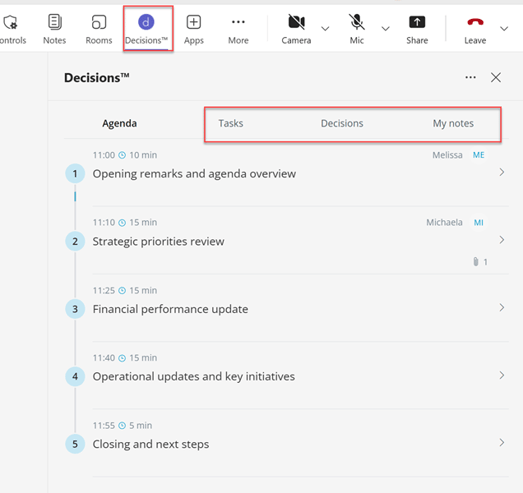
- You can also capture additional notes, tasks and decisions manually live during the meeting if needed
Step 3: Generate AI Recap
The AI recap is your shortcut to a clean, shareable summary, and it is especially helpful for project and programme meetings where stakeholders need quick clarity.
- After the meeting, click on Recap at the top of your agenda or directly on your dashboard
- You can find full instructions here: Generate AI Recap
Step 4: Follow up on tasks and decisions
This is where meeting outcomes turn into progress. Tracking tasks and decisions consistently helps prevent missed actions and repeated debates.
- At the top of any Agenda, you’ll see tiles for Tasks and Decisions. You can click on these tiles at any time to review these elements without scrolling through individual agenda items.
- The number shown on each tile reflects the total open tasks and decisions for that specific Teams group, not just the current meeting.
Ready to put this into action? Open the Decisions app in Microsoft Teams and start drafting the agenda and meeting documents for your next meeting today.
Note: You can also apply this guide beyond project and programme meetings—adapt the same steps for operational meeting formats like team meetings, daily stand-ups, weekly check-ins, catch-ups and other.