
How draft mode works
Draft mode enables Meeting Admins (Team owners, agenda co-authors, and meeting organizers) to view, edit, and save agenda items without publishing the agenda.
Publishing the agenda grants all members of the team who are invited to the meeting access to view the agenda.
Attendees can be added to the meeting via the calendar invite (either in Outlook or the Teams calendar) while the meeting is still in Draft Mode or after publishing
Save an agenda in draft mode
- Locate and access the meeting from the Decisions dashboard
- Build an agenda item
- Click "Save as draft" (rather than "Save")
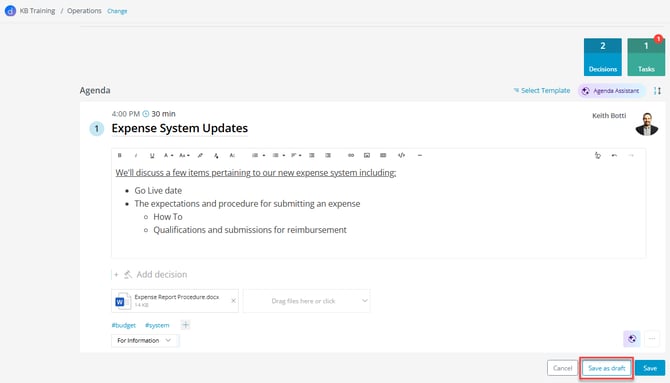
Decisions will save the agenda item in draft mode, denoted with a badge at the top reading "Draft". Meeting Admins will be able to come back to the agenda at their leisure to add more agenda items or edit the preexisting agenda item(s) as needed.
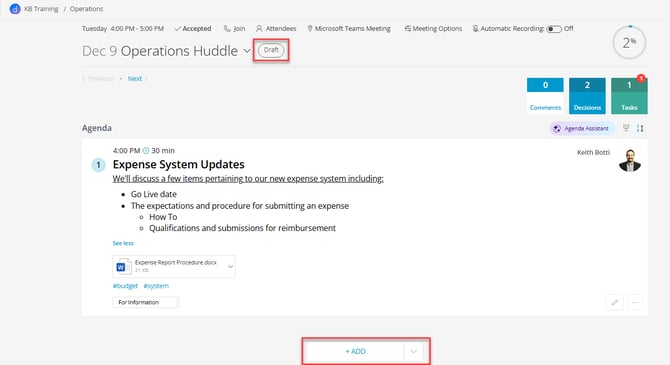
Upon publishing an agenda all members of the corresponding team/channel in Teams will be able to view the agenda. All non-members who have been granted access to the agenda will also then be able to view the agenda.
For more information on how to grant guest attendees access to the agenda, see our article:
Publish an agenda from draft mode
- Click Publish from the banner or from the menu option
- Configure what to update in the Outlook meeting event
- Configure AI Automations for the meeting (if applicable)

Meeting invitees who are not Admins (Team owners, agenda co-authors, and meeting organizers) will see the meeting in their dashboard, denoted as being in draft mode:

Clicking "Create agenda" will redirect invitees to a view that confirms the agenda has not yet been published:

For more information on roles and user permissions or on building your first agenda see our articles: