Before beginning with the migration we recommend taking the steps to ensure use of Decisions within your new M365 tenant.
- Approve the Decisions Azure AD enterprise application for your organization
- Review and complete the Admin checklist for deploying Decisions
- Notify your Customer Success Manager or support@meetingdecisions.com of your intention to migrate to a new tenant so that licenses can be transferred
- Assign the Business and Premium AI licenses to the appropriate teammates
Once approval for Decisions in the new tenant is completed, follow the steps for moving prior meeting data to the new tenant.
Tip: Meetings and meeting data from the old M365 tenant will not be displayed within the meeting dashboard for the new tenant, but will be accessible via the "Meeting Agenda.url" link as described later in this article
- Access the SharePoint groups that correspond to the Teams where Decisions meetings have been conducted
The Teams & Groups page of the Decisions Admin Portal will display all Teams/Groups that have had an agenda published or other meeting data tied to that environment: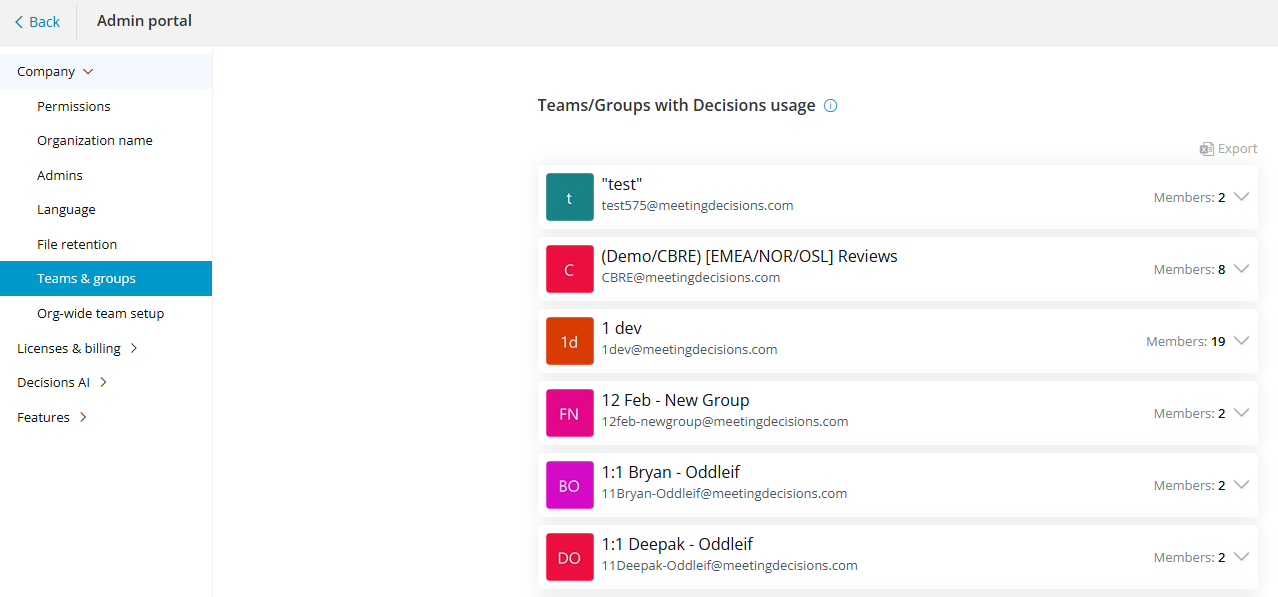
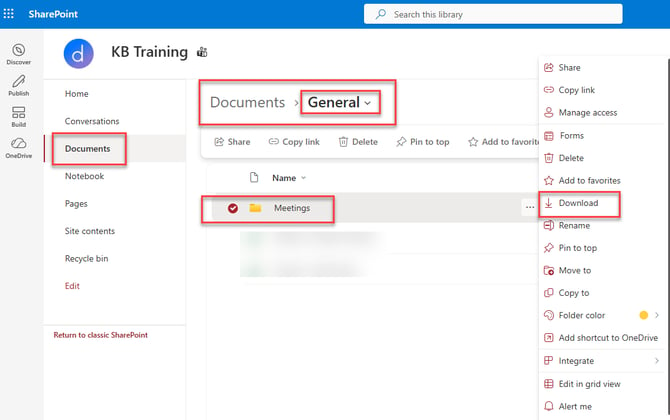
- Locate the "Meetings" folder for each relevant channel per Team/Group and download that folder:
- Upload the "Meetings" folder into the new tenant's SharePoint environment:
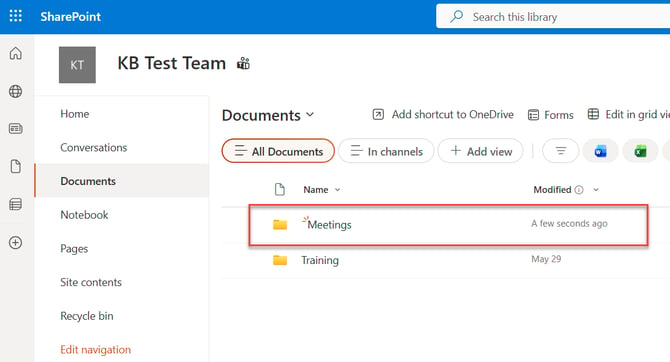
Tip: extract the "Meetings" folder from the zip file after downloading. Uploading a zip file may cause issues with compressed files
Once the "Meetings" folder has been uploaded into the SharePoint environment for the new tenant, data from a prior meeting can be accessed by clicking into that meeting's folder, then clicking on the "Meeting Agenda.url" file for that meeting
Meetings tied to the former M365 tenant will not be displayed within the meeting dashboard for Decisions within the new tenant
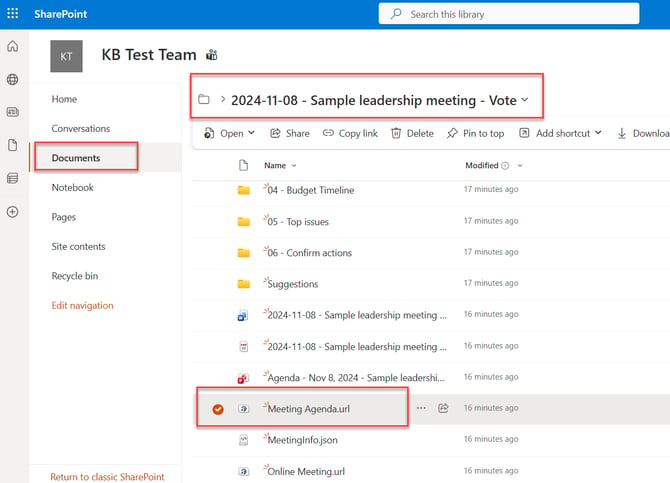
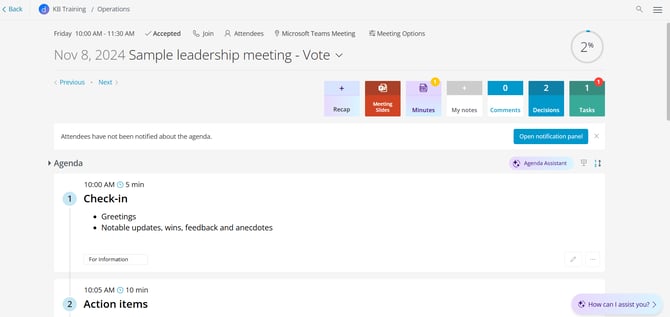
Tip: You may be required to log into your M365 account using credentials from the previous tenant
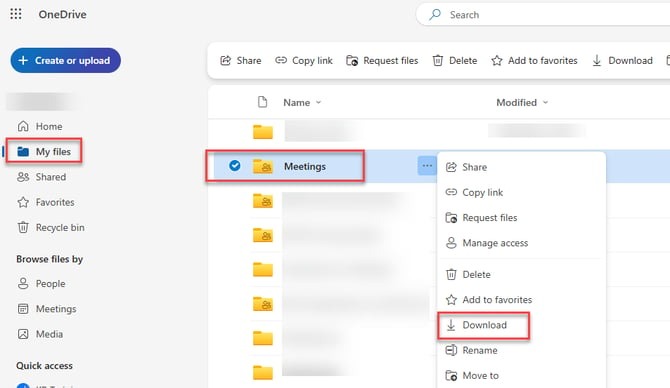
For meetings tied to OneDrive rather than a channel in Teams, download the "Meetings" folder that resides within the "My files" folder in OneDrive then upload the folder into the new tenant's SharePoint or OneDrive environment