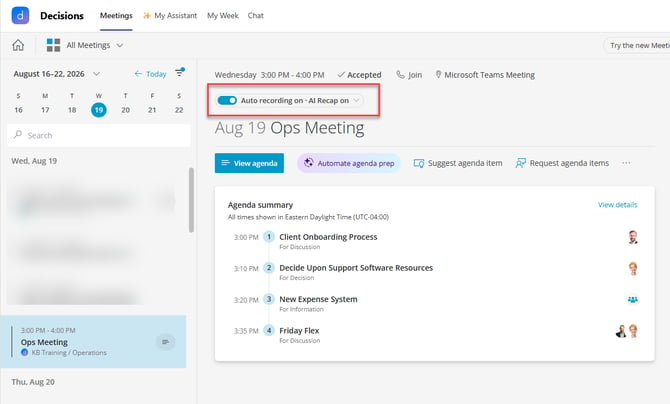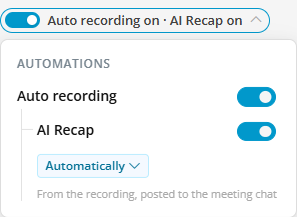
Who can see it (prerequisites)
- Your organization (tenant) must have Auto-Recap enabled.
- You must have AI features available on your account (this depends on your tenant's AI status, your license, and any admin/org-unit or approval settings).
- The meeting must be connected to a Microsoft Teams meeting chat.
If any of these are missing, the panel simply won't appear.
Where it shows up (entry points)
- When publishing a meeting from the web app
- Appears in the Publish dialog for meetings that have a Teams chat, for users with AI access on an auto-recap-enabled tenant.
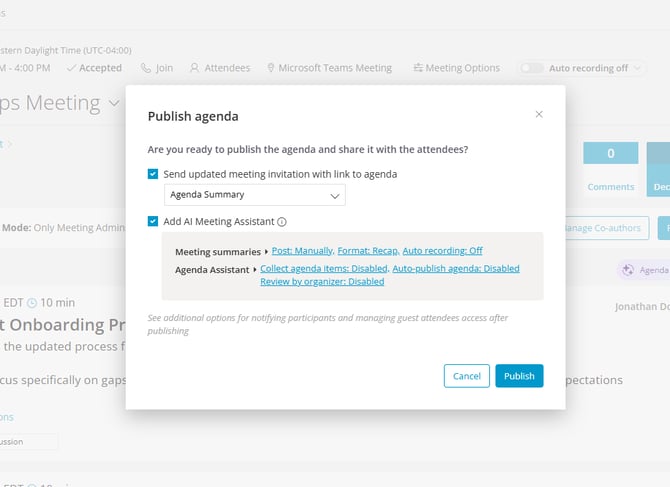
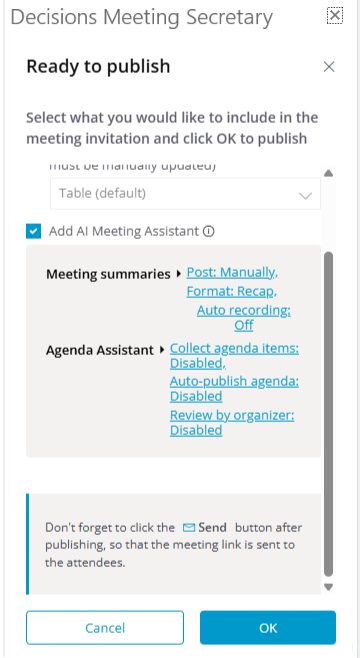
- When publishing a meeting from the Outlook add-in (sidebar)
- Same panel appears in the Outlook Publish dialog under the same conditions.
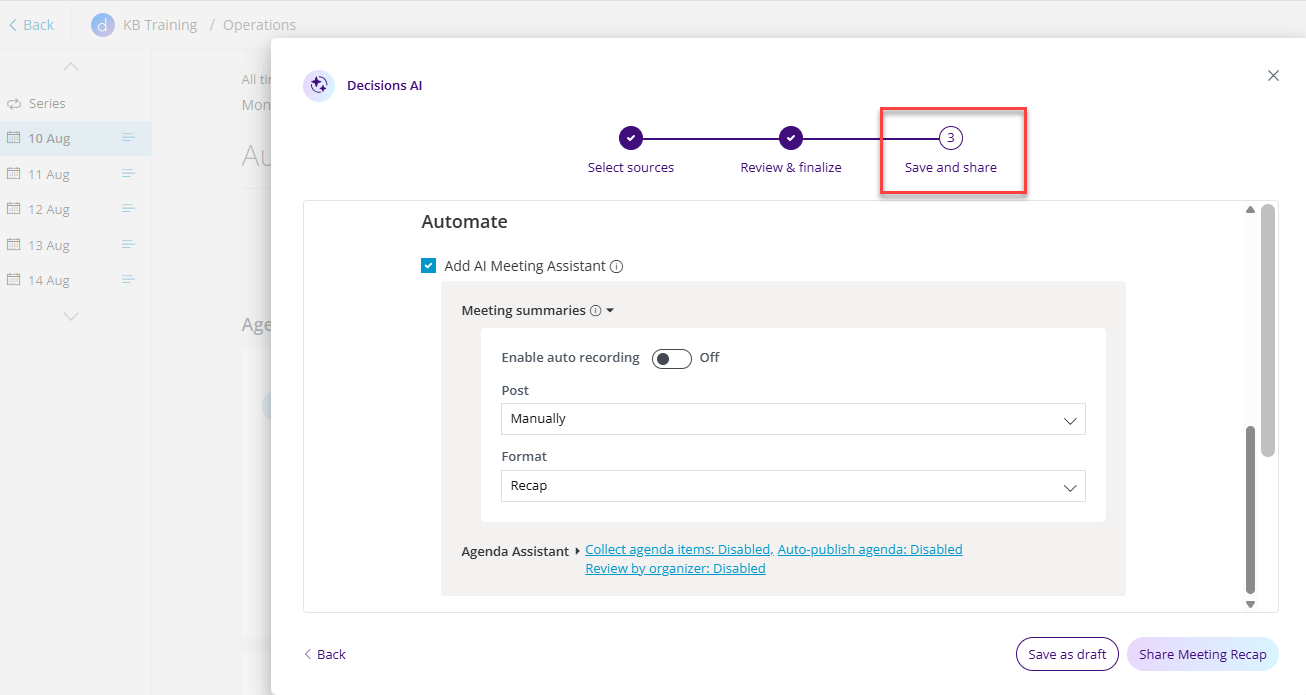
- When sharing a meeting recap (Automate section — Beta)
- Appears in the recap-share screen, but with tighter conditions. It shows only when all of these are true:
- The meeting is a recurring (series) meeting.
- It is not a channel meeting.
- The meeting chat is active (not disabled or limited).
- You are the meeting organizer or a meeting admin.
- AI has not already been turned on for that meeting's chat.
- Appears in the recap-share screen, but with tighter conditions. It shows only when all of these are true:
- From the dashboard — "More automations"
- Users click the "More automations" link on the auto-recap card (dashboard) to open the full configuration dialog. Here the panel is always shown, with the recording, recap, and agenda-prep options expanded.