
In some scenarios a teammate may need to access an agenda and meeting materials for meetings they have either not been invited to or in circumstances where Teams is not operating correctly.
If the teammate is a member or owner of the team or channel in Teams to which the meeting is tied, or has been granted access, directly locating the agenda and attached files via SharePoint is a viable alternative.
The following steps will provide the procedure for accessing the agenda and materials:
- Identify the channel in Teams to which the meeting is tied. There may be a notification for the agenda once published within the "Posts" tab in Teams in the channel.
- Access the Group in SharePoint that corresponds to the team.
- Click into the folder representing the specific channel to which the meeting is tied
- Click into the "Meetings" folder
- Click into the folder representing the specific meeting in question
- Click on "Meeting Agenda.url"
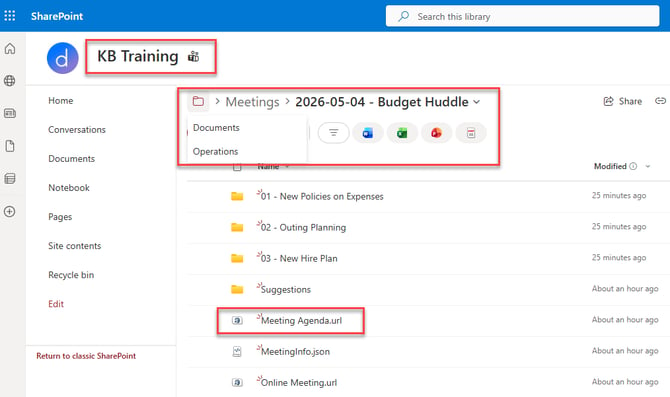
Once the SharePoint Group is located the navigation is: Documents > Operations > Meetings > Meeting Folder
Decisions will always store meeting information in the "Documents" folder. In this case the "Operations" folder represents the teams channel.
Decisions will create the "Meetings" folder housing all agendas and meeting materials tied to this channel and will also create the specific meeting's folder.
Clicking "Meeting Agenda.url" will open the agenda within the preferred web browser:
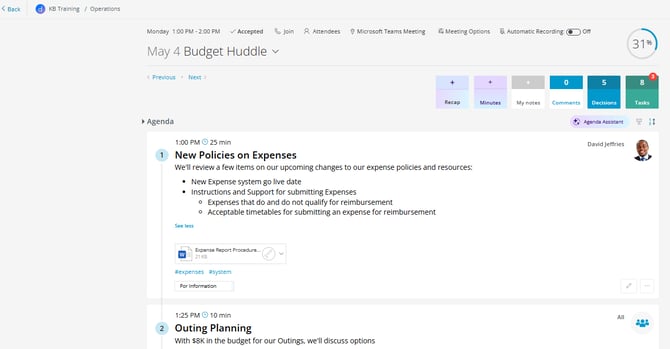
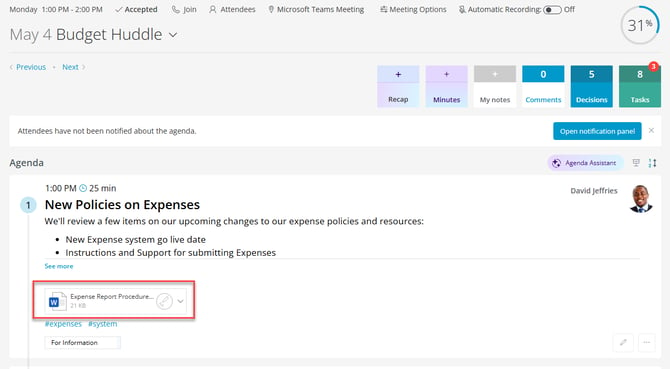
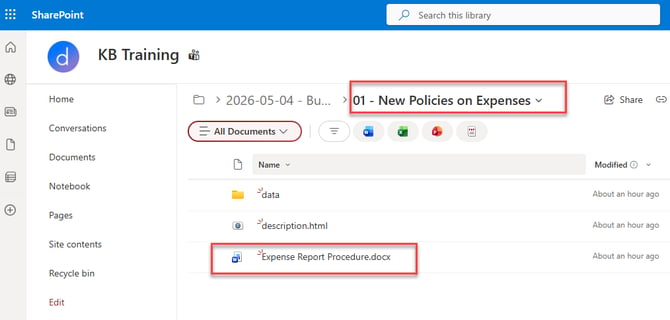
Files will be accessible from the agenda view, but also by clicking into the specific agenda item subfolder where the file is stored:
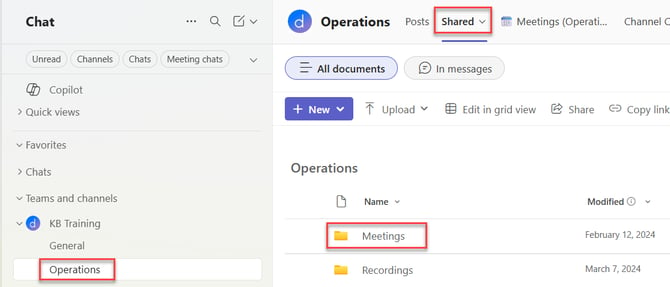
NOTE: Team members can access the SharePoint environment for the meetings directly via the channel in Teams by clicking into the "Shared" tab:
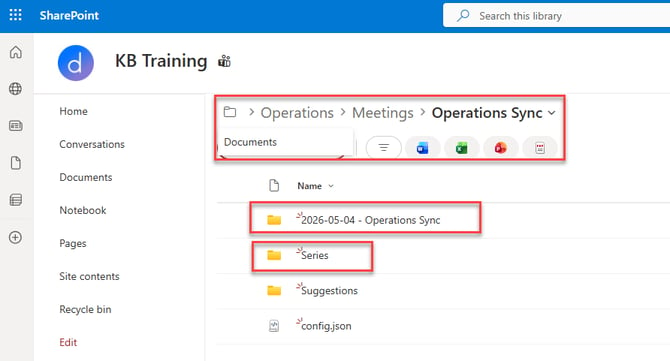
NOTE: In cases where the meeting is part of a recurring series with a Standing Agenda Decisions will create a folder representing the meeting series, then create new subfolders for each meeting instance where a modification to the agenda has been made as well as a "Series" folder that represents the Standing agenda.
NOTE: If the meeting in question is tied to a private channel, SharePoint creates a separate Group specific for the private channel