
Changing the storage location of Agenda before save
Decisions offers the ability to change the storage location from the agenda view if the change occurs before meeting data is saved. In this case Decisions will populate "Change" in blue text in the upper left corner of the agenda view next to the currently designated storage location:
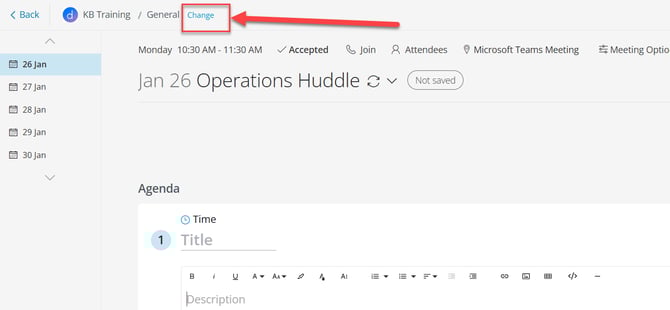
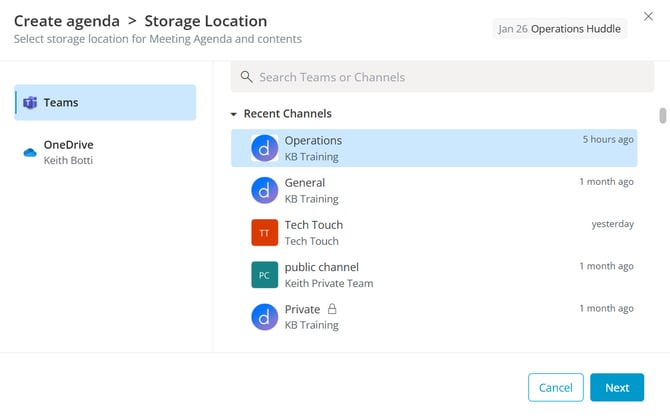
Clicking "Change" will reopen the storage selection workflow where the storage location can be changed:
Changing storage location for meeting with an agenda or series with a standing agenda
If an agenda already exists for a meeting or series, the agenda must be deleted before the storage location can be changed.
Delete agenda related content to re-set the storage selector
-
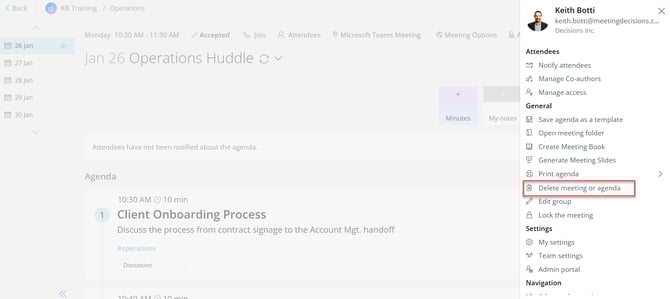
In circumstances where the storage location of a meeting must be changed, but an agenda item has been saved (even if in draft mode), the agenda must be deleted from the main menu
-
Before deleting, save your agenda with our Agenda templates feature in order to avoid recreating the agenda manually
-
Click the main menu, then click "Delete meeting or agenda"
-
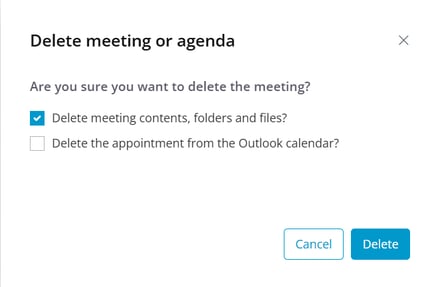
Delete the meeting contents, folders, and files, but do not delete the appointment from the Outlook calendar
-
Your meeting will still populate within the Decisions dashboard and the workflow to choose a storage location will reset as though the meeting was just created
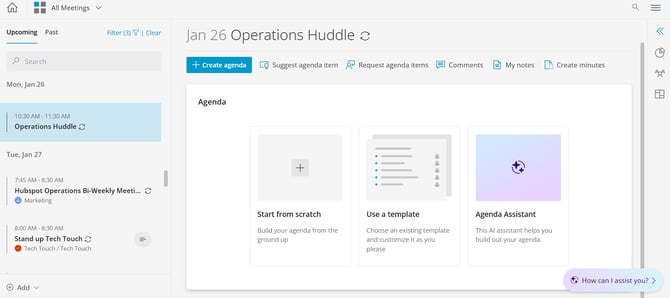
Recurring meetings / Meeting series - Standing agenda
-
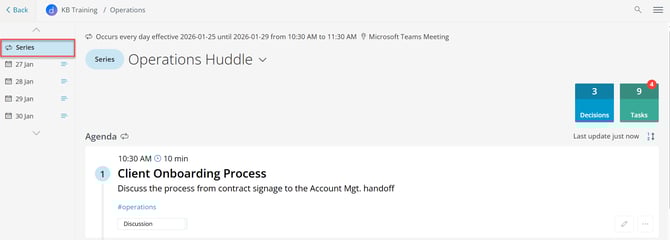
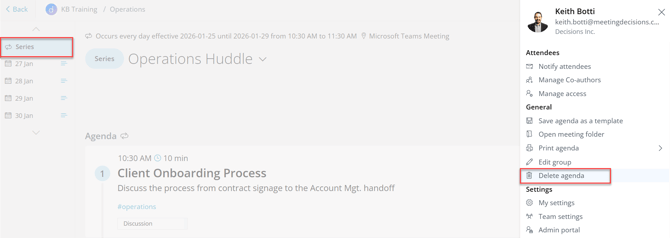
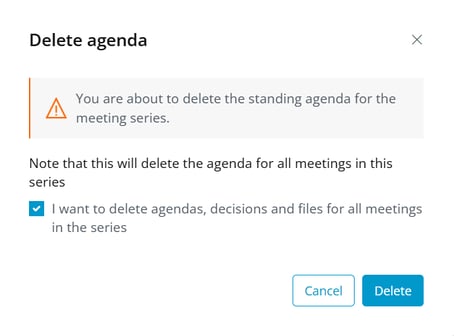
For recurring meetings with a standing agenda, the agenda must be deleted via the main menu, but from the standing agenda denoted by "Series"
-
Once deleted, the meeting series will still populate within the Decisions dashboard and the workflow to choose a storage location will reset as though the meeting was just created
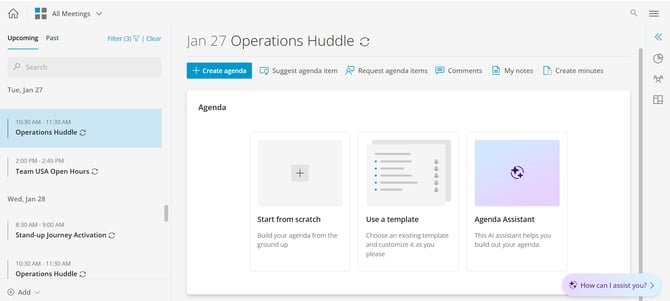
If you have a partially completed meeting series and need to change the storage location for the remaining meeting instances, the meeting organizer can edit the recurring series (in Outlook or the Teams calendar) such that the most recently run meeting in the series is the final one.
From there a new meeting series can be created and tied to the correct storage location.
Decisions will automatically remove the future meeting instances from the original series in the dashboard, but retain the meeting instances that remain from the original series.