
Why the emails are sent
The emails may be sent when this Case submission setting is enabled:
A case is a folder in the team's SharePoint site. When a submitter adds a Presenter, Contributor, or Reader, Decisions shares that folder as the submitter, using their own SharePoint permissions, never as an owner.
If your SharePoint site does not let members share files and folders, SharePoint cannot grant that access directly. Instead it turns each share into an access request and emails the site owners to approve it. One submitted case can result in one email per owner - for each submitted case.
So the emails are not coming from Decisions. They are SharePoint access requests, triggered by a sharing restriction on the site.
The fix: let members share
Allowing members to share removes the approval step entirely. Presenters get access immediately, and no email is sent.
You must be an owner to make these changes:
- In Microsoft Teams, open the team's channel and select Files or Shared, then Open in SharePoint (Tip; Open in SharePoint might be hidden behind the … button)
- On the site, select the Settings gear in the top-right corner, then Site permissions.
- Select Change how members can share.
- Turn on Allow members to share the site and individual files and folders.
Example:
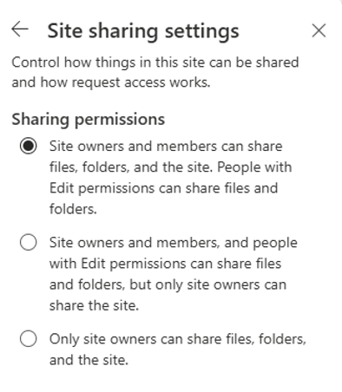
- Click Save (Or OK depending on version)
If you do not see "Change how members can share," select Advanced permissions settings, then Access Request Settings on the ribbon. Microsoft updates these labels from time to time.
Changes apply to new shares. Cases shared before the change keep whatever access they already have.
What changes when you do this
Turning member sharing on is the right setting for this feature, but it does loosen one control: members can then share the site, files, and folders without owner approval. For most teams this is the expected behavior and the reason the feature exists. If your organization deliberately requires owners to vet every share, see the alternatives below.
| Option | Emails to owners? | Consequence |
|---|---|---|
| Allow members to share: on (recommended) | Stopped | Presenters get access immediately. Members can share site content without owner approval. |
| Keep approvals, but change the recipient | Redirected away from owners | Send access requests to a shared mailbox or distribution list instead. Access still needs approval before a presenter can open the case. |
| Allow members to share: off, access requests off | Stopped | Shares are silently blocked. Presenters never get access, and the case can still look shared inside Decisions. Not recommended. |
| Leave as is | Continue | An owner must approve each case by email before access is granted. |
If you need to keep approvals
Some organizations require an owner to review every share. In that case, do not turn member sharing on. An option is to send the requests to someone other than the owner:
- Follow steps 1 to 3 above to open the access request settings.
- Leave Allow access requests on.
- In send access requests to, enter a monitored shared mailbox or distribution list.
- Select OK / Save
Owners stop getting the individual emails, but a reviewer still has to approve each request before the presenter gets access.
What not to do
Do not simply turn Allow access requests off while members still cannot share. That stops the emails, but it also means the share is blocked with no request and no notification. Presenters silently lose access, and the problem looks solved when it is not.
A note on external presenters
If a case is shared with someone outside your organization, external sharing must also be enabled for the site (SharePoint admin center, then Policies, then Sharing). This is separate from the member-sharing setting above and does not affect the approval emails.