
Pre-requisites
- Voting is a premium feature, contact your salesperson to enable it
- Every participant that need to vote will have to have the Decisions app installed in their Teams account
- External Guest needs to have Decisions deployed via centralized deployment
- Further details: Guide to run vote in public meetings
Create the decision(s) to vote on
- Open the Agenda, go to the relevant Agenda item, click on edit and log a proposed decision.

- Add a title and brief description, then Save.
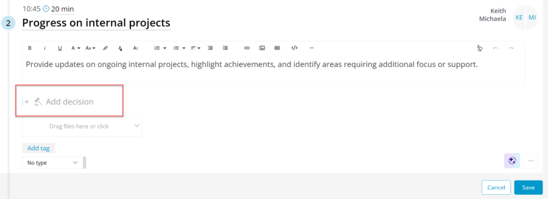
In the case of multiple-choice votes, add one decision per choice.
Tip: Meeting organizers often add proposed decisions ahead of time, but these can also be created or edited during the meeting.
Configure vote settings and launch the vote
Check one or multiple proposed decisions. Then click Start vote.
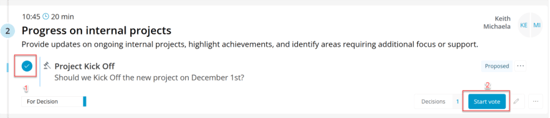
Once you Start Vote, in Settings select all options applicable to you, then click Apply. 
Voting anonymity
- Open: Participants can see who voted and for what they voted for
- Partial anonymity: Participants can see who voted but not for what (Only displayed when there are enough members and cast votes to preserve anonymity)
- Full anonymity: Neither the participants nor the administrator is able to see who voted or what they voted for
Run the vote
Participants can vote live from Teams chat, in browser or the mobile app.
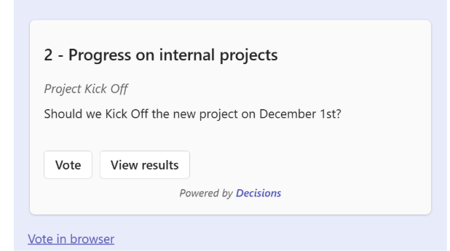
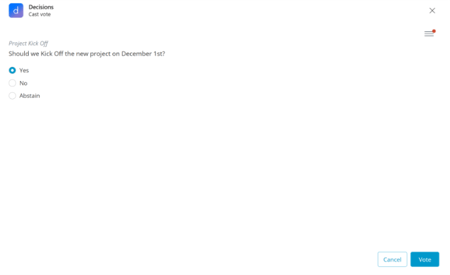
Each voter selects their choice and clicks Vote.
Tip: Want to manually register a vote for a participant who is unable to vote, or allow attendees to vote via email? Select the decision and click on Votes. 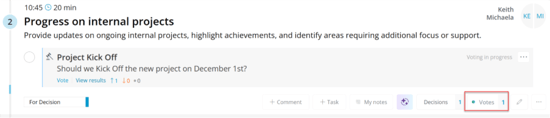
Choose Register vote and fill in the details. Or, to send ballots by email, select Send voting emails.
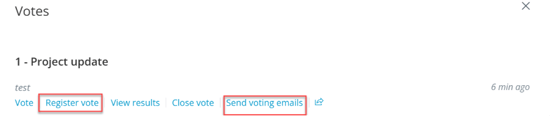
In the case of manually registered vote, fill in the details as shown below:

- Vote closing
If the automatic Close vote option was not preselected when setting it, you can do so manually.

View results and share a report
Open the decision and select View results to see totals.
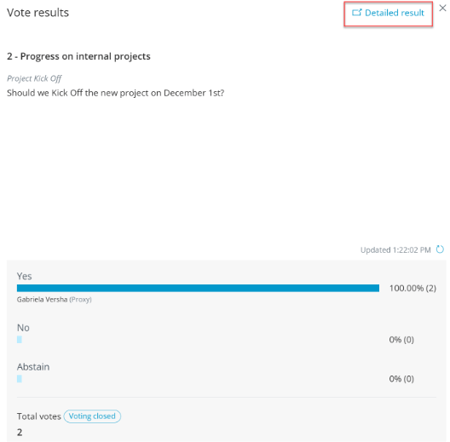
Moreover, you can also display the details results.
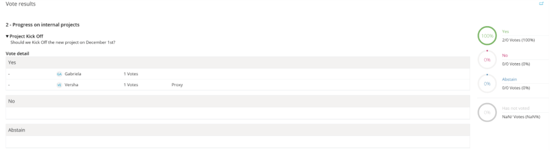
Additionally, you can generate and print a vote report.
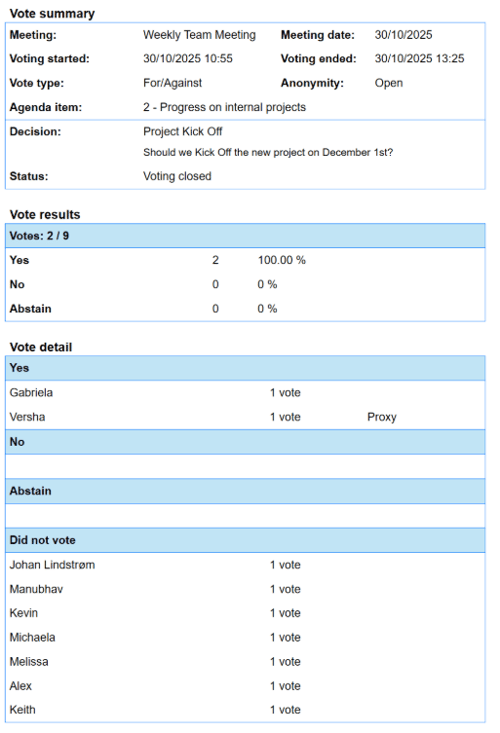
Final decisions and the outcome of the vote can also be included in the Meeting Minutes.