
What locking a meeting does
When a meeting is locked, the meeting content becomes read-only in the Decisions platform:
-
Prevents editing of agenda content (agenda items, text, decisions, tasks, etc.)
-
Helps keep the meeting in a “finalized” state to avoid accidental edits
-
Members can still view the meeting content
“Lock/Unlock” is a Microsoft SharePoint permission update on the meeting content.
What unlocking a meeting does
Unlocking re-enables editing so you can make updates and finalize again:
-
Use this for exceptions (typos, late corrections, governance updates)
-
After changes, you can lock the meeting again and re-generate minutes if needed
Who can lock/unlock a meeting
Only users with the required Microsoft 365 / SharePoint permissions can lock or unlock:
- ✅ Meeting admin
-
✅ Microsoft 365 Group Owners / SharePoint Site Owners can lock/unlock
-
❌ Meeting Organizer (Outlook/Teams) is not automatically allowed to lock/unlock
-
❌ Co-authors in SharePoint typically cannot lock/unlock (by design)
-
Decisions runs these actions as the signed-in user and does not elevate access. This follows least-privilege principles.
Read more about Roles and User Permissions in Decisions.
When meetings lock automatically
Meetings often lock automatically after publishing minutes (especially when a Minutes PDF is generated), depending on your setup and who generated the output.
How to lock a meeting
-
Open an agenda in Decisions
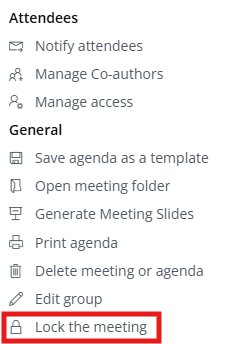
- Click the menu (3-line hamburger symbol) top right
-
Select Lock the meeting
How to unlock a meeting
-
Open the locked meeting in Decisions
-
Click the menu (3-line hamburger symbol) top right
-
Select Unlock meeting agenda
Common scenarios
-
“It locks when the Group Owner generates PDF minutes, but not when others do.”
Expected—only Owners can apply the permission change. -
“I’m the meeting organizer but can’t lock/unlock.”
Expected—organizer ≠ SharePoint Owner. -
“The Lock/Unlock option is missing.”
Likely you’re a SharePoint member/co-author, not an Owner.
Troubleshooting checklist
-
Confirm you are an Owner of the Team/M365 Group or the SharePoint site behind the meeting
-
Confirm you are not only a member/co-author
-
Test with a known Group Owner account to validate permissions