How Teams transcript and recording access works
Transcription and recording are Microsoft Teams features and aren’t managed by Decisions. Decisions simply uses the Teams transcript to generate AI meeting summaries.
Today, Microsoft Teams often doesn’t automatically remove guests who were added to the meeting chat. In many cases, those guests keep access to anything posted in the chat after the meeting, such as the transcript, meeting recap, and follow-up messages.
With Manage guests, Decisions helps meeting organizers manage that access quickly and confidently during or after the meeting, directly from the Decisions interface, so sensitive meeting artifacts don’t linger in the wrong hands.
Best practices for limiting guest presenter access
Use these approaches to reduce unintended access to Teams recording and/or transcript:
-
Review who is invited before the meeting starts
-
If a guest shouldn’t retain access after presenting, remove them from places where Teams grants ongoing access e.g. from the meeting chat
How to remove guests from the meeting chat
When you open an Agenda in Decisions, you’ll see a notification if there are guests in the meeting chat. From there, you can choose to manage guest access right away, as shown below: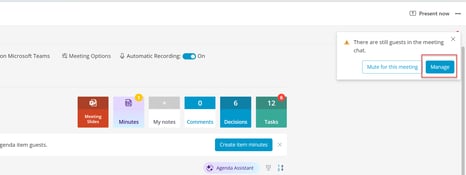
How to remove guests from the meeting chat during the meeting
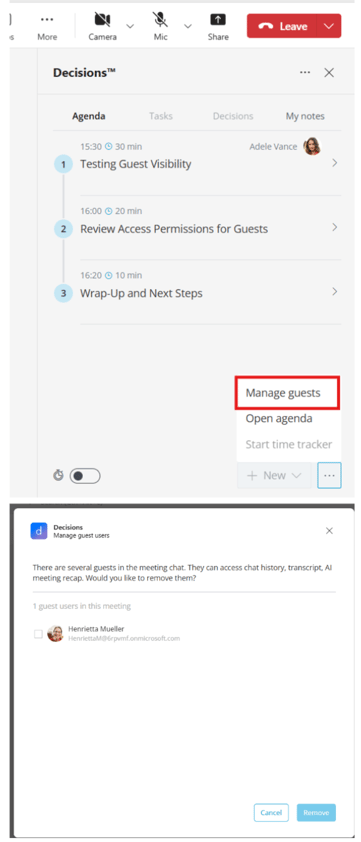
If you need to act quickly during a live meeting, Decisions also provides a way to remove guests from the meeting chat directly from the Teams side panel. This is especially helpful when a guest joins unexpectedly, is called in directly or no longer needs to remain in the meeting chat.
-
In the meeting, open the Decisions side panel
-
Locate the Manage guests option
-
Select the guest(s) and click Remove