
Set up org-wide custom template storage location
1. Navigate to the Org-wide team setup tab in the Decisions Admin PortalDecisions Admin portal > Org settings > Org-wide team setup
2. Select an existing public team, or if you do not have any public teams, you will have to create a new Public M365 group to support this feature. You can learn how to create an M365 Group.
Important:
- The group needs to be Public
- Group Owners can create and manage the org-wide templates
- (Since it is Public, all users in your organization can use the templates from this group)
3. Search for the group "Decisions org-wide artifacts" or whichever naming convention was used for the new group within the search bar titled "Select group."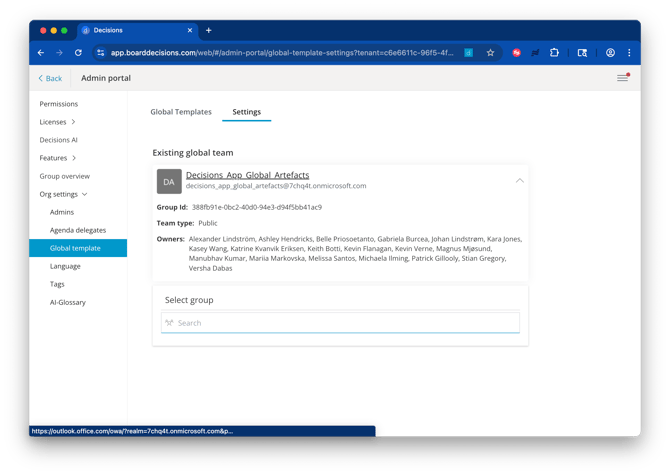
5. To deploy the team as a org-wide template, click "Use for org-wide template."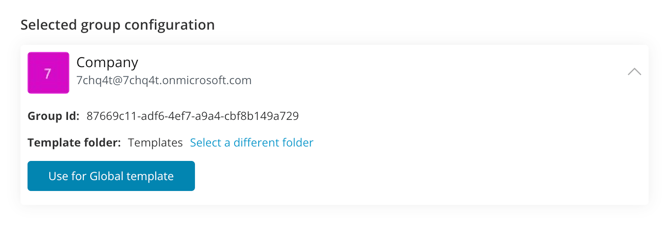
6. Once selected, you will see the group under the "Existing org-wide team" section of the global template settings tab within the Decisions Admin Portal.
(Note: If you ever need to change the team, you can simple search here again for another team (where you are a Group Admin) to select a new team for org-wide templates.)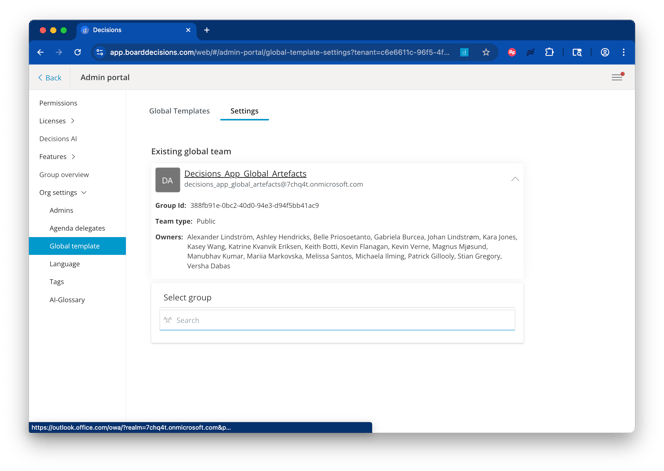
Create org-wide document templates
Click on the Org-wide Templates tab to upload the Template.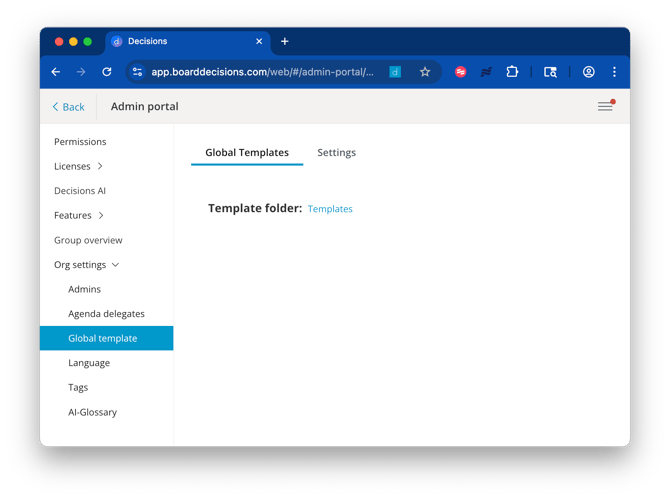
Upload your Template under the Templates folder (Documents > Config > Templates in the SharePoint page that loads upon click). 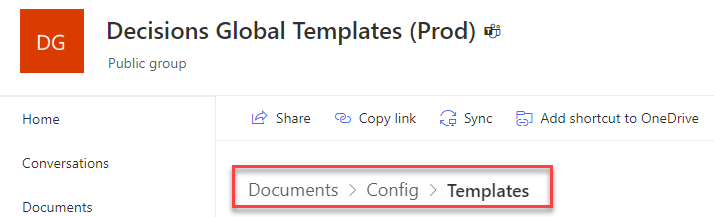
Once completed, you can test it in any of your meetings.
Create org-wide agenda templates