Prerequisites
Decisions does not use customer content to train or improve AI models. When Decisions AI is enabled, meeting content is processed transiently and statelessly using Azure OpenAI, strictly to deliver the requested functionality. Inputs and outputs are not stored, logged, or reused for training by Decisions and all generated content is saved only in the customer’s Microsoft 365 tenant, which remains the system of record. More details on our security, privacy, and AI practices are available in our Trust Centre: https://trust.meetingdecisions.com.
Create an agenda with Agenda Assistant
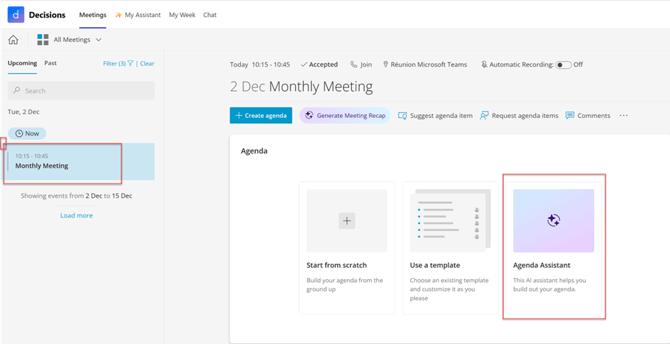
- Open Decisions and identify the meeting on your Dashboard that needs an agenda.
- Click Agenda Assistant.
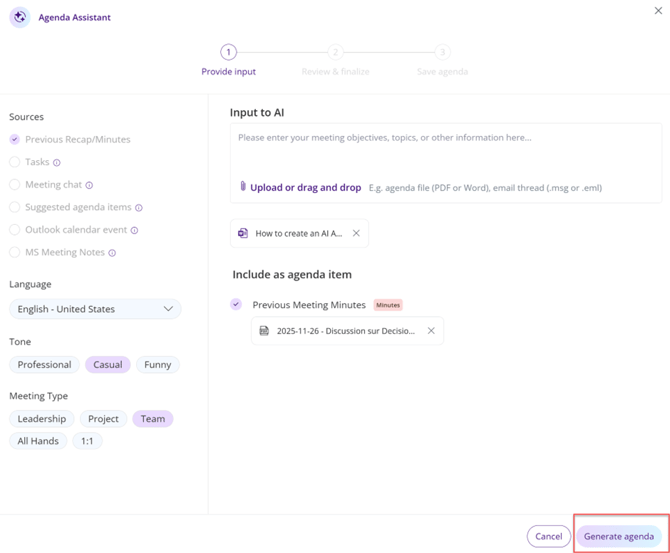
- Select storage location for the agenda.
- Select sources to inform the agenda (e.g., past minutes, Word/PDF/PowerPoint/Excel/.csv file, email thread).
- Click Generate agenda to let Decisions AI draft the structure and timings.
Review and refine the AI agenda
- Review the output. Edit directly in the agenda, or use the Describe changes field to request AI edits (e.g., reduce time for item 3 to 5 mins).
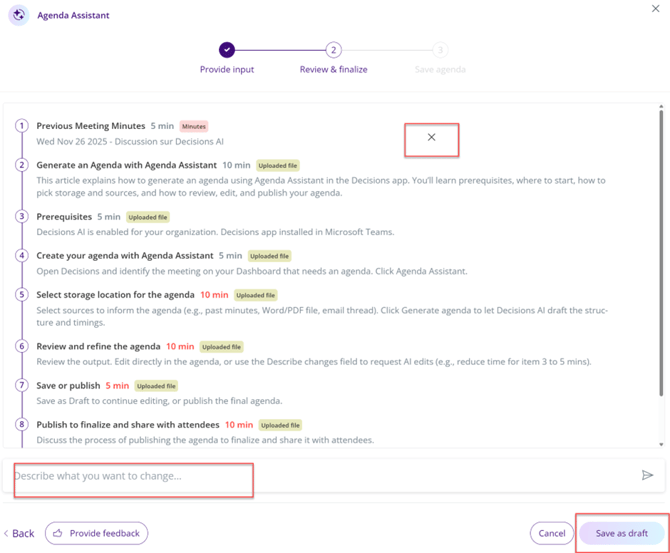
- Save as Draft to continue editing.
- Once ready, you can Publish the agenda.
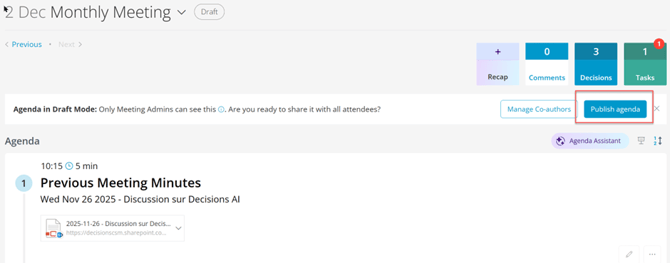
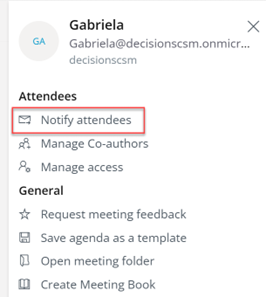
- At this point, you can also choose to notify the attendees. To access the option, open the Menu (3 line "hamburger" symbol).