
Looking for a different meeting type? View our other popular guides:
Project Meetings
Leadership and Management Meetings
Joining as a Meeting Attendee
Prerequisite
To keep agendas, files, decisions, and tasks organized, as well as to simplify access management, set up a dedicated Microsoft Teams team specifically for your board or committee meetings. Decisions stores meeting content in the team and channel you select, so having a dedicated space helps keep everything in one secure, predictable location.
Recommended membership setup:
-
Add all meeting admins as Owners so they can manage the meeting content as needed.
- Add board members as Members so they can access meeting materials freely.
Don’t have a dedicated Teams team yet? Follow this article to learn how to create and manage one: Create a team from scratch in Microsoft Teams
Step 1: Prepare the Agenda
For board and committee meetings, an agenda supports governance by providing a clear structure for decision-making, creating a consistent record of what was planned and discussed, and helping participants prepare in advance.
When you create or open a meeting in the Decisions app, your agenda starts in a draft stage. This gives the meeting organizer a safe space to prepare meeting content without notifying attendees or sharing unfinished details. This draft-first approach supports standardized meeting governance for board and committee meetings, making preparation more efficient while helping protect confidentiality and meet compliance requirements. The meeting organizer has full control over what gets shared and when, so nothing is distributed until you choose to publish or share it. In addition, the drafts can be shared with other admins for collaboration before the meeting.
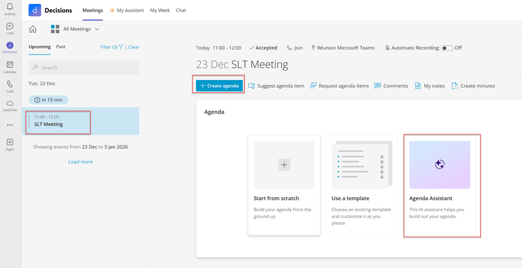
- Open the meeting in the Decisions app
- You can either create it manually by clicking on Create agenda or use the AI Agenda Assistant to start building it based on an existing agenda document (e.g., Word, PDF)
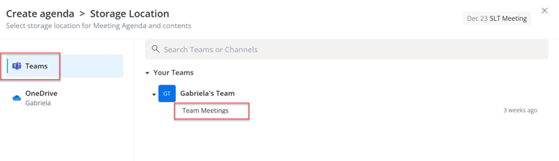
- Choose a relevant storage location
- Finalize the agenda by uploading or linking supporting documents under the relevant Agenda item
Tip: You can save agenda templates to reuse for future meetings.
Step 2: Generate and share the Meeting Book
The Meeting Book is your board/committee packet, which includes the Agenda plus attached materials compiled in a single PDF file for easy reading and distribution.
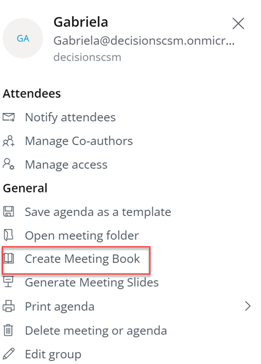
- From the Menu (3-line "hamburger" symbol), choose Create Meeting Book. This will generate the draft version in Word.
- Choose options such as agenda items and attachments. Note that the Word add-in Meeting Documents Manager needs to be available to complete this step.
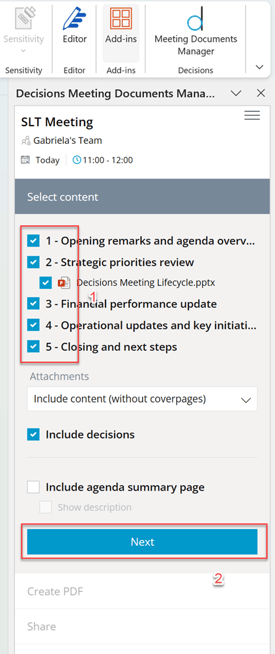
- Then merge into a PDF and share with the attendees (including external ones)
- At this stage, you can Publish the agenda, which will also make visible to the attendees, not just the admins. You will also be given the option to include an agenda summary, as well as a link to the Meeting Book in the Outlook invite
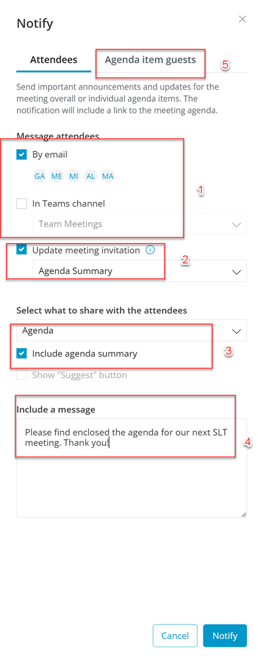
- Notify attendees and guest presenters (if your workflow includes guests) so that they are made aware that the Agenda and Meeting Book are now available
Step 3: Generate the Meeting Slides
Meeting Slides are optional, but they can be helpful when you need a more polished, professional way to guide the discussion and present information during the meeting.
- In the Agenda Menu, choose Generate Meeting Slides
- Generate slides from your Agenda (titles and structure)
- Follow this article for detailed steps: Generating Meeting Slides
Step 4: Run the meeting
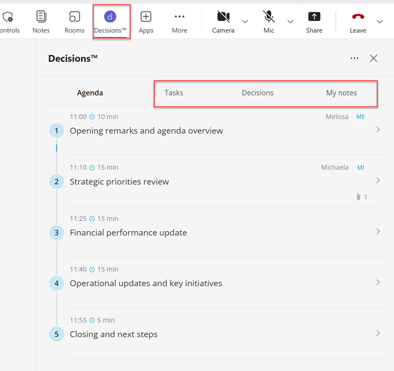
- Start the Microsoft Teams recording/transcript at the beginning of the meeting (or preset the meeting for automated recording). The transcript is the primary source for AI Minutes because it functions as automated meeting notes, capturing what was said in real time. This means the facilitator and note taker can stay fully present and engaged in the discussion, while still producing a reliable, consistent record.

- If you’re in the room or away from your laptop, use the Decisions AI mobile app to capture meeting notes. Here is how to do it: Creating Recap or AI Minutes from an in-person meeting
- You can also capture additional notes, tasks and decisions manually live during the meeting if needed
Step 4: Generate Meeting Minutes
For board and committee meetings, minutes are often a formal requirement and a key part of good governance. They help demonstrate compliance with regulations and internal standards, support audit and record-keeping needs, and make it easy to produce the documentation stakeholders may request later. Because Decisions is embedded in Microsoft 365, your minutes and supporting content stay within your organisation’s environment, helping maintain data security and avoiding external storage or separate tools.
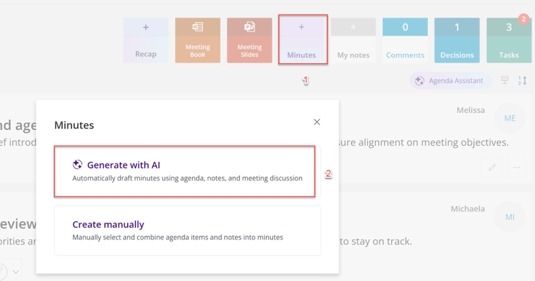
- After the meeting, click on Minutes at the top of your agenda or directly on your dashboard
- You can choose between Generate with AI to create a draft from your transcript and notes, or Create manually which relies on the notes that you have taken
Review and finalize
- Validate governance-critical details:
- Attendance
- Decisions and action items
- Meeting notes for accuracy
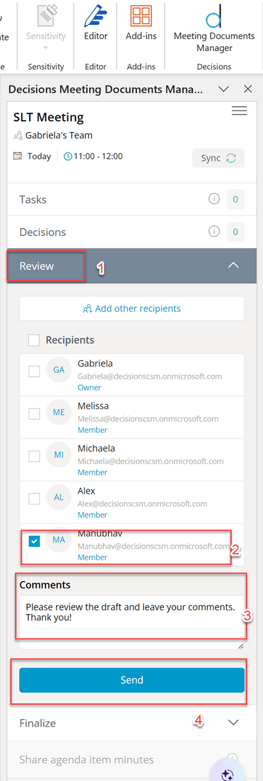
- Share with other attendees for review if needed
Publish and share
- When ready, choose Finalize
- Share finalized minutes with attendees and other stakeholders as needed
Same as with the agenda, the meeting organizer has full control over what gets shared, when and with whom. Nothing has to be distributed until you choose to publish or share it.
The Decision Log
The decision log helps you capture and track decisions made during the meeting so they don’t get lost in chat, notes or follow-up emails. It also strengthens governance by creating a clear, searchable record of what and when was agreed, supporting accountability, reducing the risk of re-litigating past decisions, and making it easier to respond to audit or compliance requests with confidence.
With the decision log, you can:
- Manually record decisions as they happen or immediately after: How to log decisions
- But you can also let AI log them for you
- Keep a single source of truth across recurring meetings
- Review past decisions without digging through old agendas or minutes
- Support follow-up and accountability by pairing decisions with outcomes and next steps

Ready to put this into action? Open the Decisions app in Microsoft Teams and start drafting the agenda and meeting documents for your next meeting today.
Note: For more complex board and committee workflows, Decisions also includes other features for advanced governance needs, such as:
- Voting as well as Structured Approvals for formal approvals and recorded outcomes
- Restricted access to specific attachments so only the right people see sensitive materials
- Electronic signature for approvals and document sign-off
- Customizable meeting documents to match your organization’s format and branding
- Case Submission if your organisation requires a more formal way of escalating topics for discussion
- Advanced Reporting if accountability and visibility into meeting outcomes is vital in your organisation