
For situations where an agenda contains a particular item that is going to be covered again in a different meeting, Decisions offers an easy step-by-step method to create a template for that specific agenda item.
- Start by accessing the agenda with the specific agenda item in question
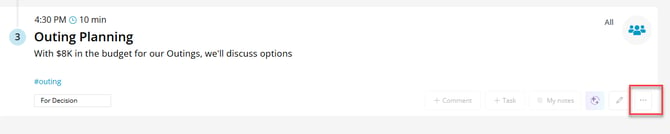
- Click on the 3-dot menu located in the lower right corner of the agenda item
-
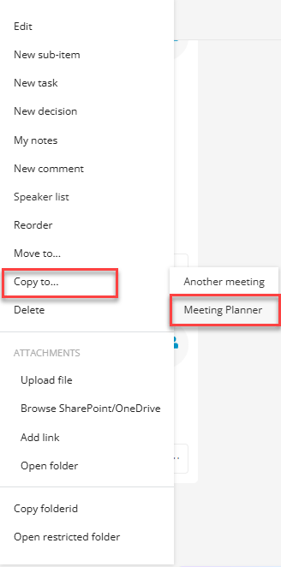
Hover over "Copy to..." then click on "Meeting Planner"
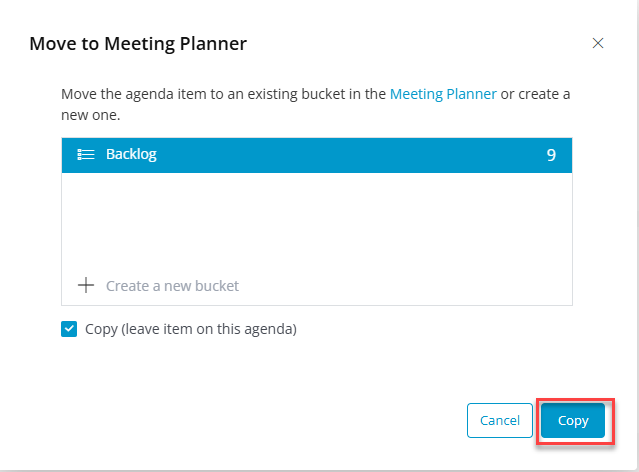
- Click "Copy" in the lower right corner of the popup. Leaving the "Copy" checkbox checked will copy the agenda item to the Meeting Planner while unchecking the checkbox will remove the agenda item from the agenda and into the Meeting Planner
Your agenda item is now a single item template and can be imported into other agendas and Decisions offers an easy step-by-step guide to importing.
- Access the agenda to which you would like to import the backlogged item
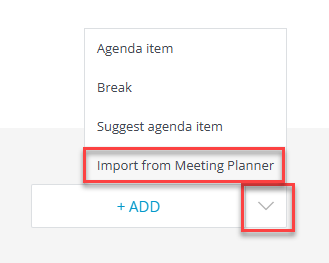
- At the bottom of the agenda, click the down arrow, then click "Import from Meeting Planner"
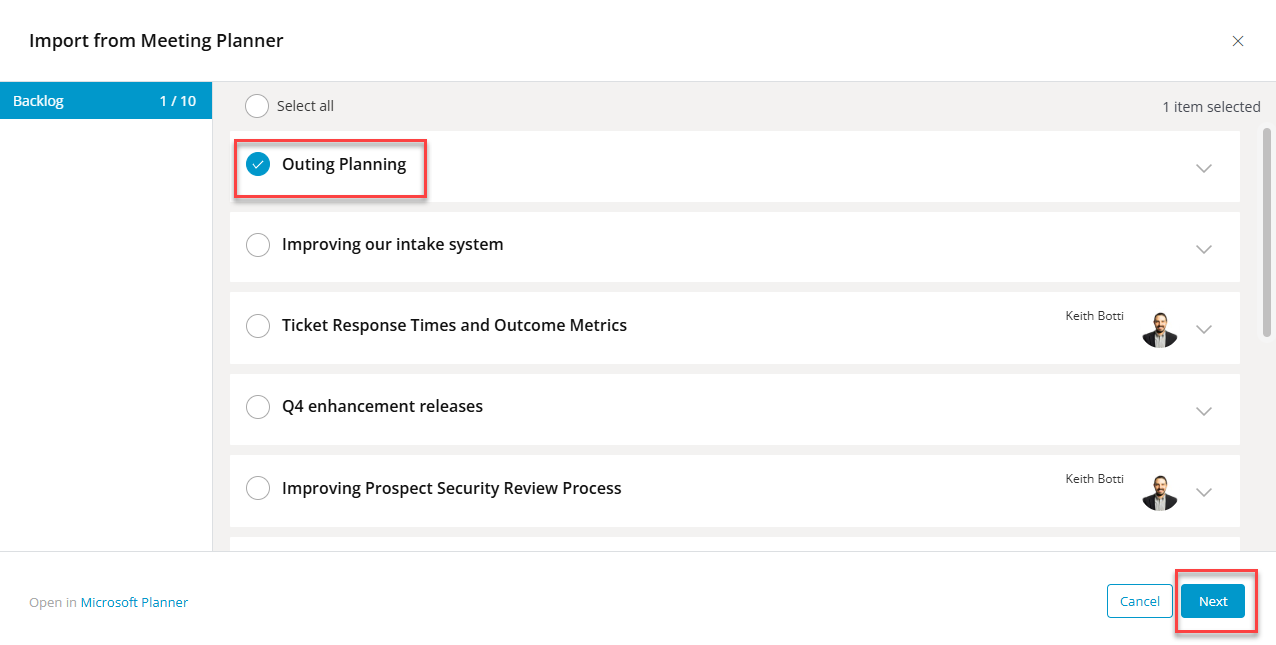
- Select the agenda item(s) you would like to import into the current agenda and click "Next"
-
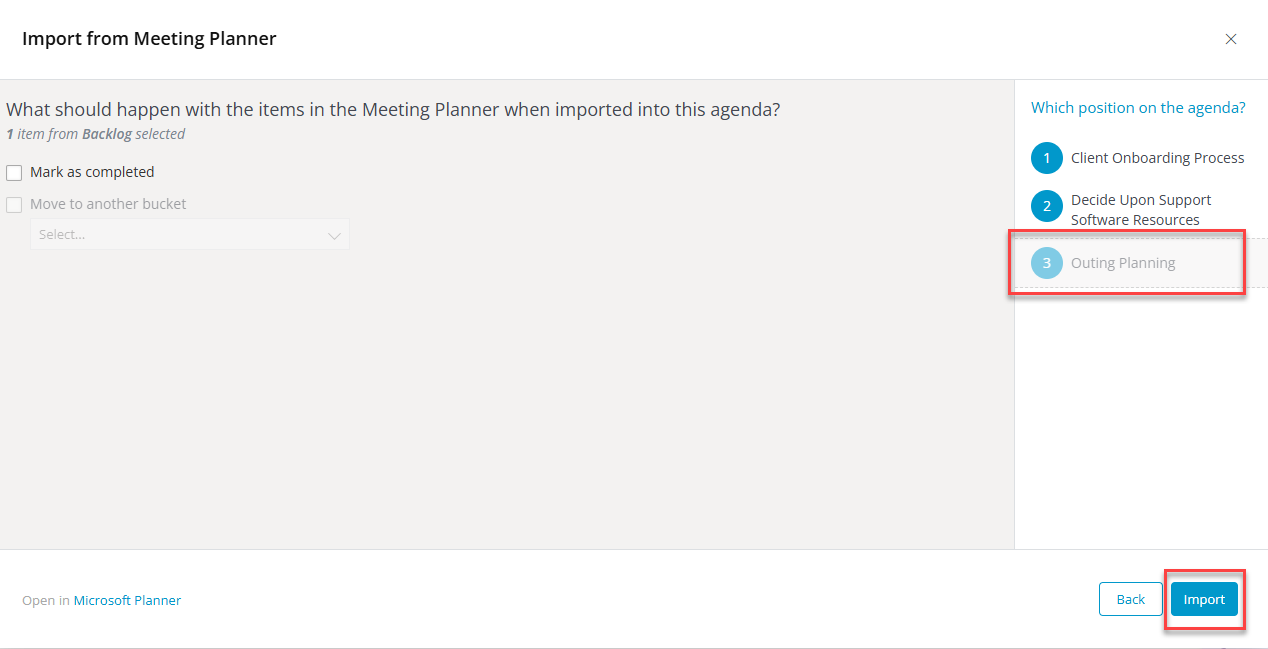
Choose which position the item to be imported should appear within the agenda. Marking the item as completed will remove it from the Meeting Planner. Leaving the "Mark as completed" checkbox unchecked will retain the item within the Meeting Planner for use in other meetings
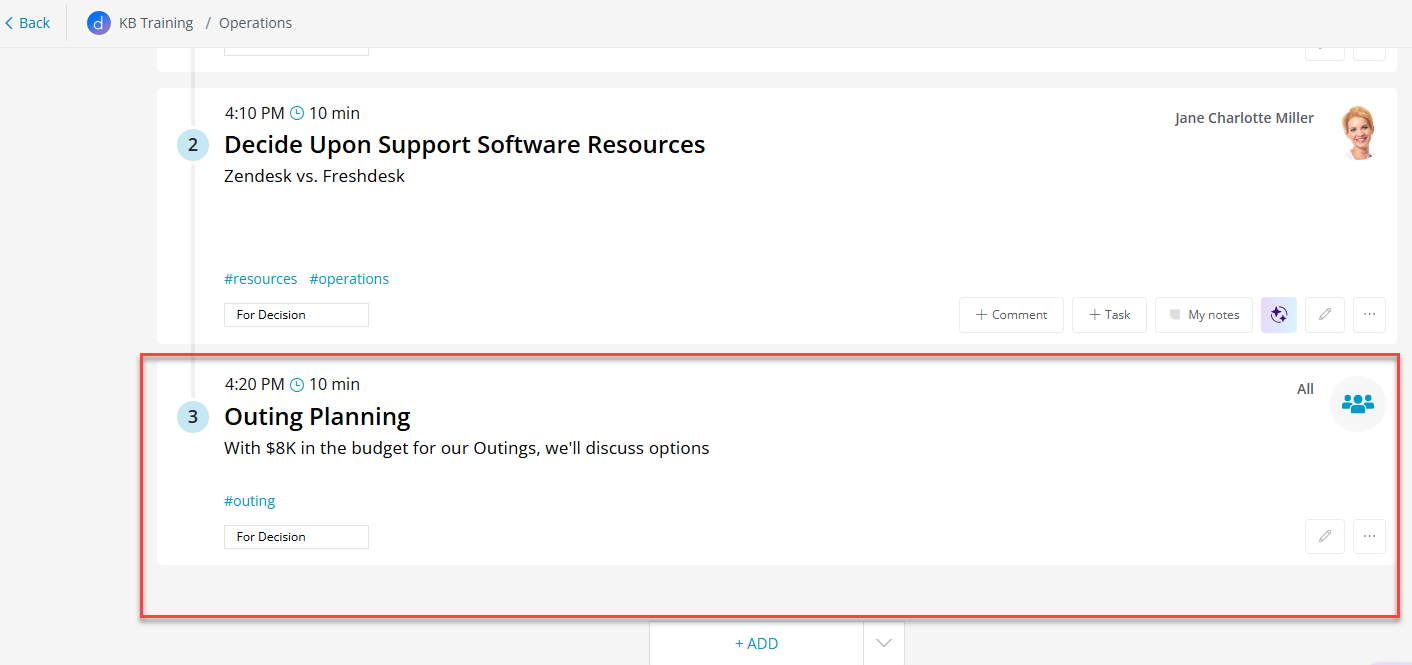
- The agenda item will be automatically imported into the agenda
Tip: Each Teams channel will have a specific planner storage location that houses backlogged agenda items.