
The same rules apply when you sync tasks from OneNote.
1. Write your task or decision in Word
While taking meeting minutes, simply write out a task or decision, using this pattern:
Task: action item @name date
Decision: decision
Put the date straight after the last name, with nothing else in between. The date is optional.
Important note: Additional date formats and synonyms (words) for Task: and Decision: are supported. Scroll to the end of this article to see what is supported and examples.
Assigning people
- Put an @ in front of each person, with a space before each @. You don't need a comma between people. Keep all the names and the date on the same line.
- Type the name as it appears in Teams, without a comma. If Teams shows Miller, Julie, write
@Miller Julie. Given name then family name also works, like@Julie Miller. - IMPORTANT: Don't put a comma inside a name. Decisions reads a comma as the start of a new person, so
@Miller, Juliecan be split in two and assigned to the wrong colleague, or to two people. Without a comma, the full name is read as one name. - If two colleagues have the same name, use the person's email address instead, like
@julie.miller@company.com. - You only need to type the start of someone's display name, so you don't need to add their department, location or anything in brackets.
- You can assign tasks to members of the team the meeting belongs to, or to members of the channel if the meeting is in a private or shared channel. For a recurring meeting saved in OneDrive, you can assign tasks to the meeting's attendees.
- If a name matches more than one person, Decisions picks one of them. Check the assignees in the overview before you click Save.
| What you want | What to write |
|---|---|
| One person | Task: Write documentation @Julie Miller 30.11.2026 |
| Two or more people | Task: Write documentation @Julie Miller @Tom Hansen 30.11.2026 |
| Two colleagues with the same name | Task: Write documentation @julie.miller@company.com 30.11.2026 |
2. Click “Sync”
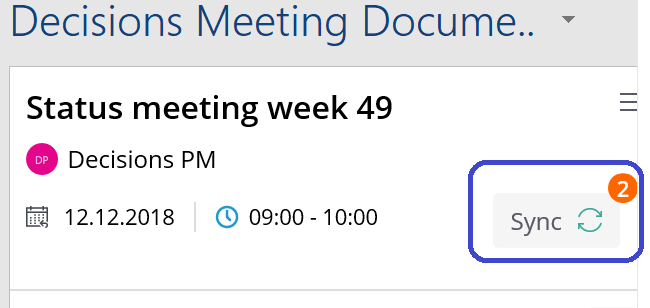
An orange circle will appear in the Decisions add-in, indicating you have one or more tasks or decisions that need to sync to Microsoft Planner.
3. Click “Save”
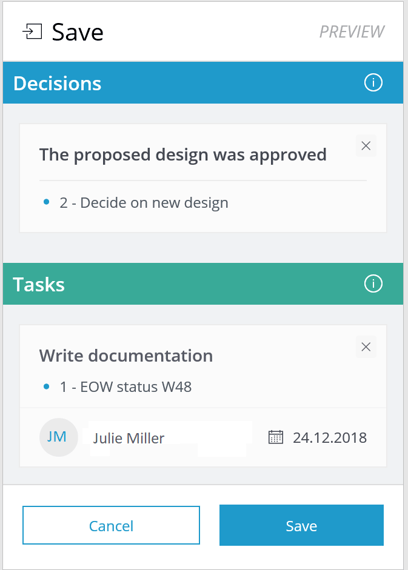 After clicking “Sync,” an overview will be presented. It indicates the tasks and decisions associated with each agenda item.
Check that each task has the right assignee and due date. Click “Save” to complete this step.
NOTE: Once you save your task, you can then insert that task as a highlighted item into your Meeting Minutes
Place your mouse cursor in the location within the MS Word document where you would like the task to be listed and select the "Insert" button underneath the task listed in the Decisions Meeting Document panel on the right hand side.
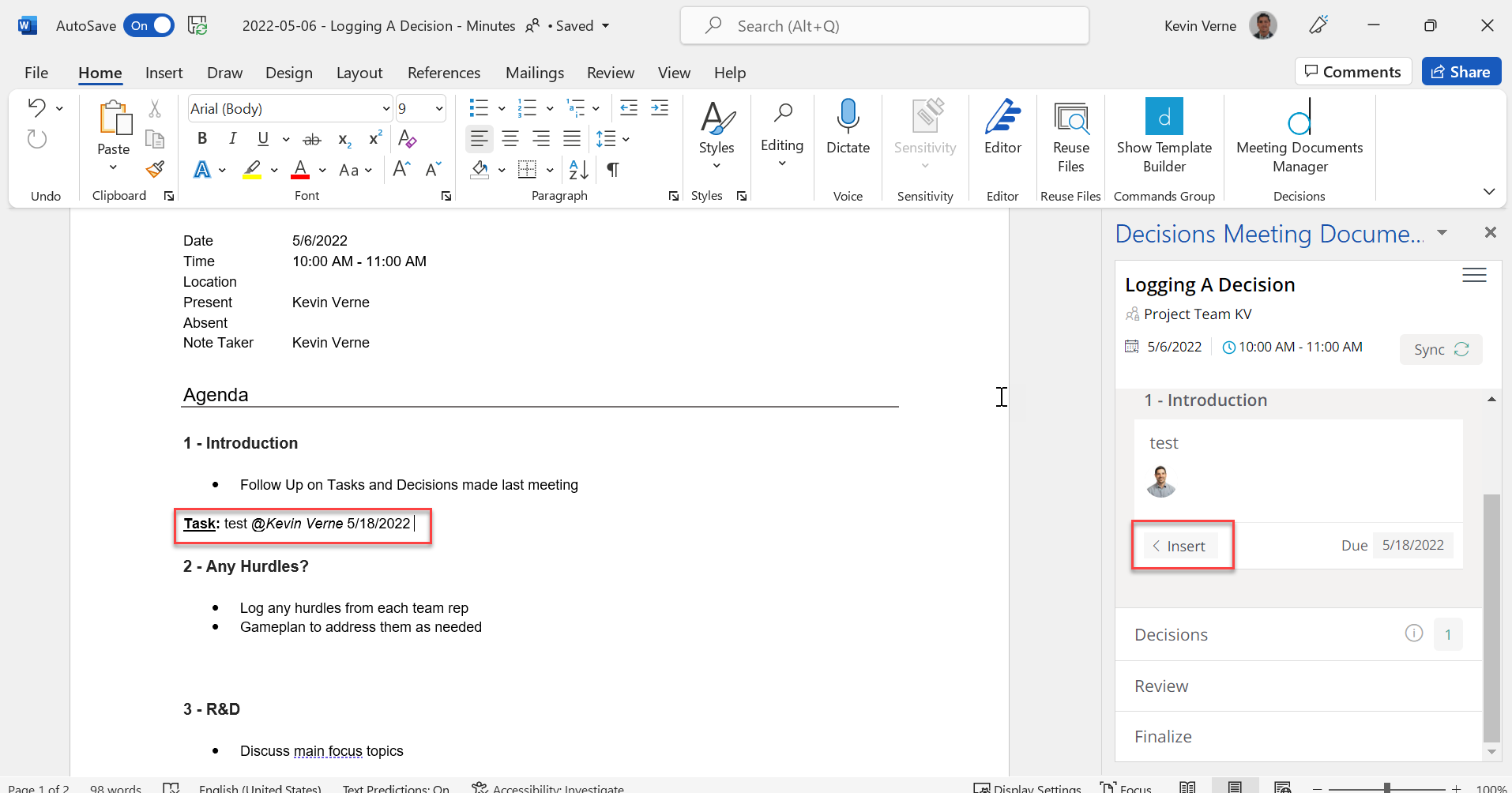
NOTE: This will insert a bolded line item that defines the assigned task
Accepted Date Formats
| Format | Example | Notes |
|---|---|---|
| dd.mm | 20.01 | Always read as day, then month |
| dd.mm.yy | 20.01.26 | |
| dd.mm.yyyy | 20.01.2026 | |
| mm.dd.yy / mm.dd.yyyy | 01.20.2026 | |
| Day and month name | 20 Jan 2026 | |
| wNN | w05 | Friday of week 5 |
| wNN-d | w05-1 | Day of week 5, where 1 is Monday and 7 is Sunday |
| yyyy-Www-d | 2026-W05-3 | Wednesday of week 5 in 2026 |
- You can use . - or / between the numbers.
- Week numbers need two digits: w05, not w5.
- When the day and month could be either way round, like 01.02.2026, Decisions follows your date format in Microsoft 365. With US English it reads 2 January, otherwise 1 February. See Setting language, date and time formats with Decisions.
Synonyms
The following synonyms are supported
English
- Task:
- Action:
- Decision:
- Orientation:
Norwegian
- Oppgave:
- Oppfølging:
- Beslutning:
- Vedtak:
German
- Aufgabe:
- Aktion:
- Entscheidung:
French
- Tâche: (or Tache:)
- Décision: (or Decision:)
Swedish
- Uppgift:
- Beslut:
Dutch
- Taak:
- Besluit:
Examples
The following entry will create a task and assign it to Julie Miller:
Task: Write documentation @Julie Miller
To also assign a deadline, simply add the date:
Task: Write documentation @Julie Miller 30.11.2026
To assign two people:
Task: Write documentation @Julie Miller @Tom Hansen 30.11.2026
The following entry will create a decision:
Decision: The minutes are approved
In the Word meeting minutes they will appear like this:
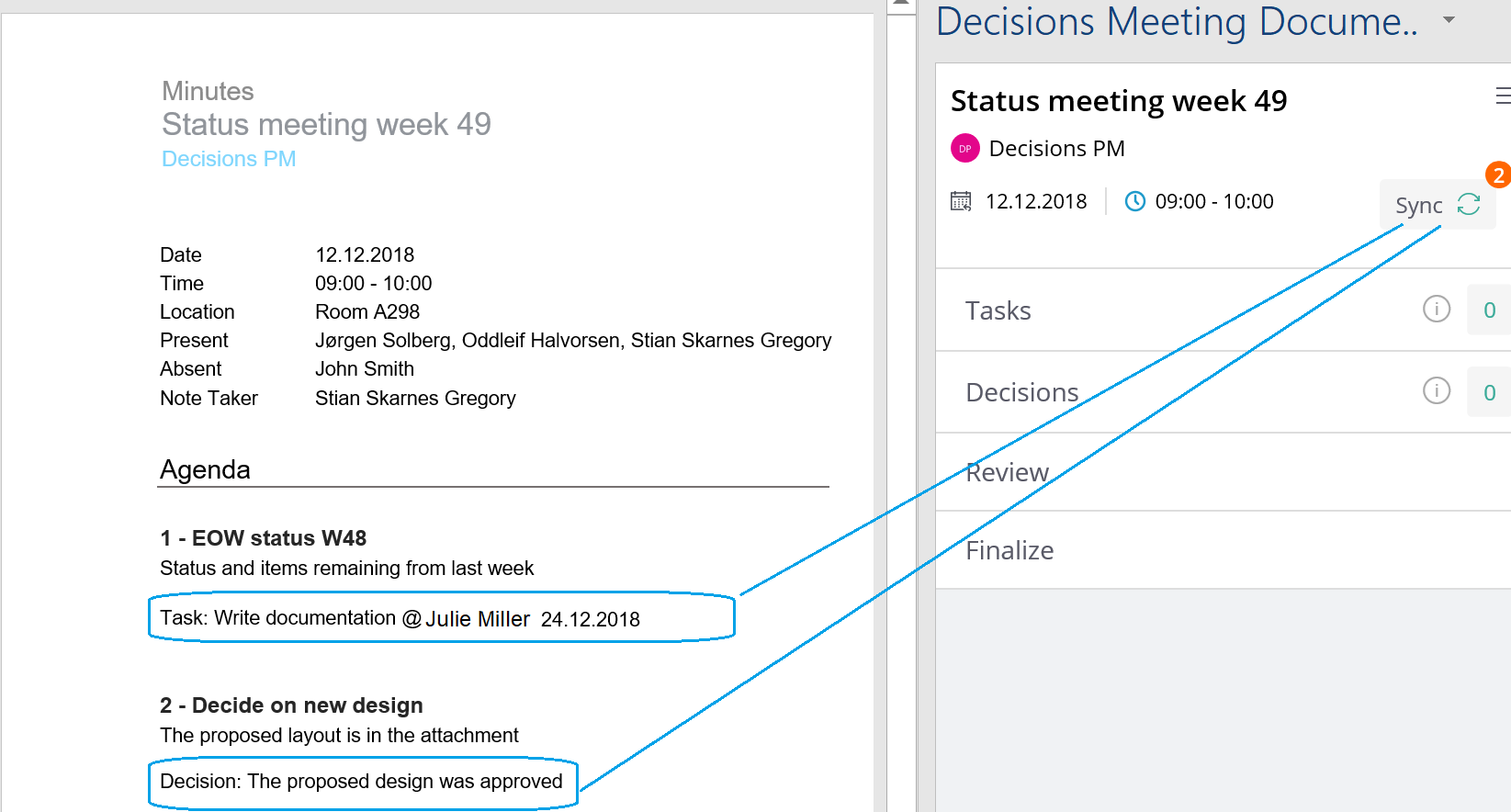
Notice the orange circle; click “Sync,” then “Save” in the next step.
FAQ
- Why was my task assigned to the wrong person, or to two people?
- This usually happens when there's a comma inside a name. Decisions reads the comma as a new person and matches each part on its own. Write the name without a comma, and check the assignees in the overview before you click Save.
- How do I assign a task to more than one person?
- Put an @ in front of each person, with a space before each @, and keep everything on one line with the date at the end. You don't need a comma between people.
- What if two colleagues have the same name?
- Use the person's email address, like @julie.miller@company.com.
- Do I need to type the suffix in someone's display name?
- No. You only need to type the start of the display name, so you can leave out the department, location or anything in brackets.
- Which names does Decisions match against?
- The display name, given name, family name and email address from Entra ID (Azure AD).